Once the List Search web part is added to a page, users can begin searching across all lists included in the selected profile.
List Search offers two search modes:
- Simple Search – for quick keyword searches
- Advanced Search – for detailed filtering using up to five conditions with AND/OR logic
In this tutorial, we will use our prepared profile Project Search Center to demonstrate how both search modes work with lists.
Step 1: Simple Search
Simple Search allows users to type a keyword or phrase and instantly search within the selected list.
- Open your List Search page.
- Make sure the included list is selected in the list dropdown.
- Enter a keyword.
- Click Search.
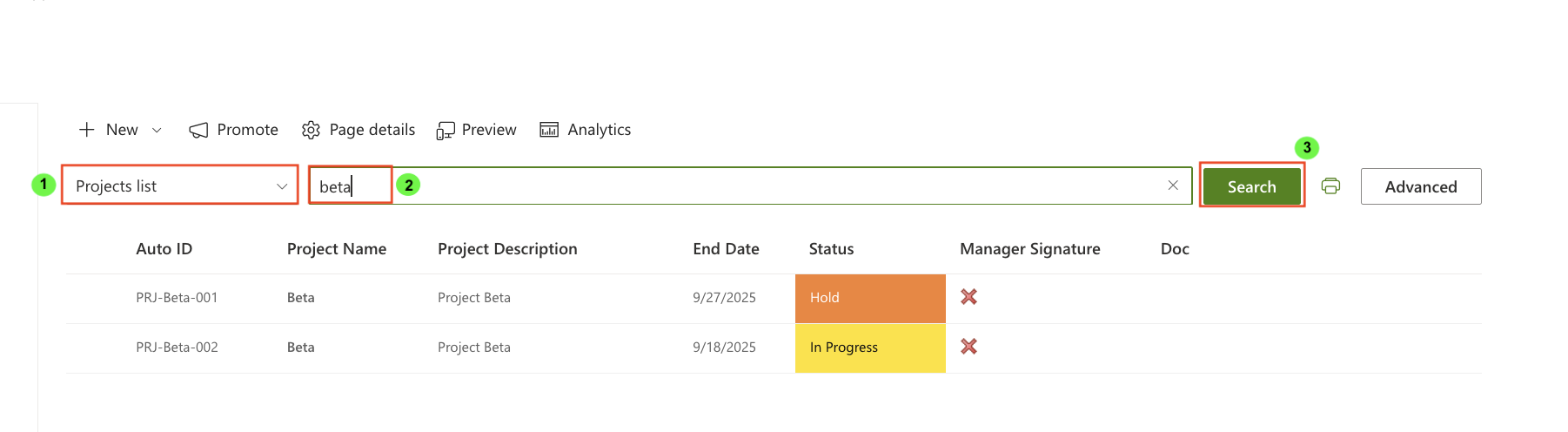
Expected result:
You should see only the results that match the entered search keyword.
Simple Search works well for:
- titles
- text fields
- partial matches
- quick searches without filters
Step 2: Switching Between Lists
If your profile includes multiple lists, users can switch between them.
- Click the List dropdown.
- Select another list.
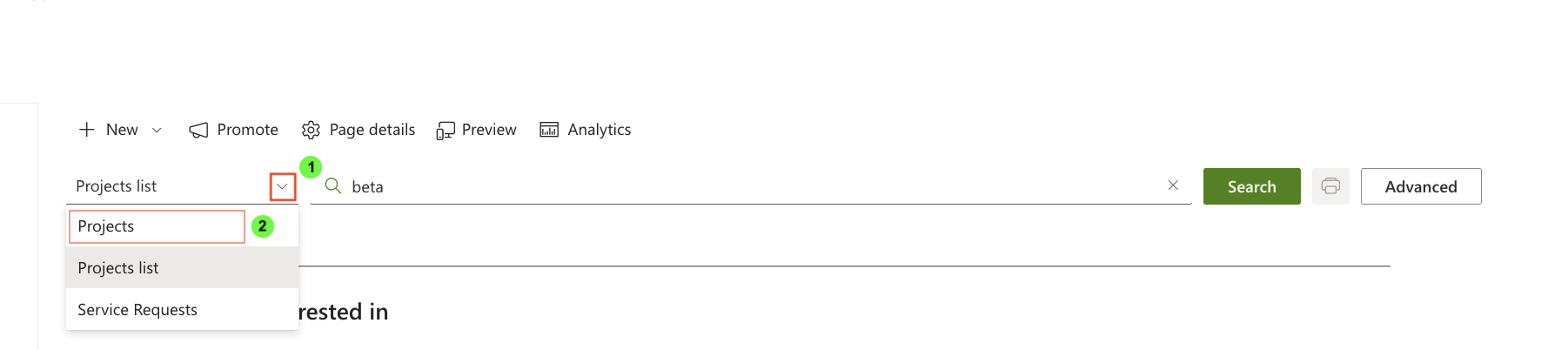
- Repeat the search.
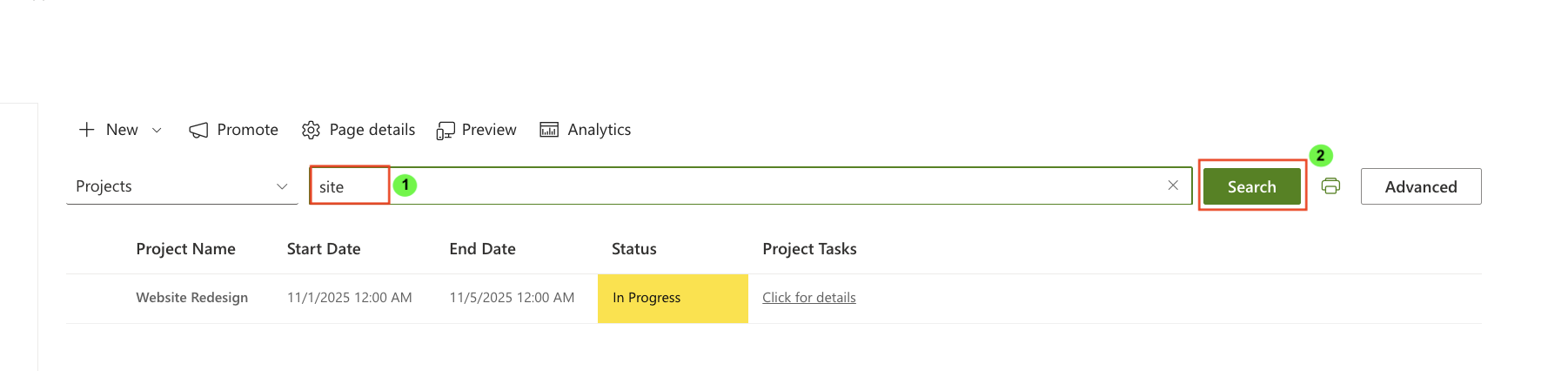
Now only items from the other selected list will appear.
Step 3: Enabling Advanced Search
If the profile is configured with Advanced mode or Allow mode switching, users can open the advanced panel:
- Click Advanced Search.

- The panel for building conditions will expand.

Step 4: Building Conditions
Each condition includes:
- Column
- Operator (=, ≠, contains, not contains, etc.)
- Value
- AND / OR logical operator
List Search supports up to five conditions.
Step 5: Example: Filter Projects by Status
Let’s build a simple condition:
- Column: Status
- Operator: =
- Value: In Progress
- Click Search
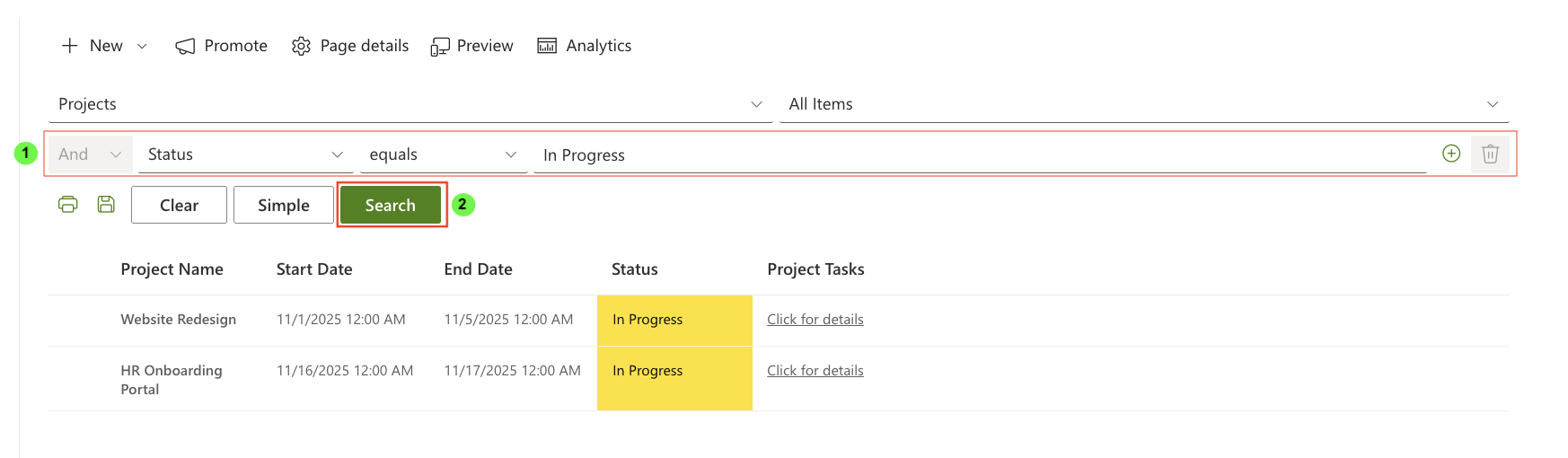
Expected result:
Only projects with the “In Progress” status appear.
Step 6: Example: Combine Two Conditions with AND
Let’s refine results by adding another condition:
- Condition 1: Status = In Progress
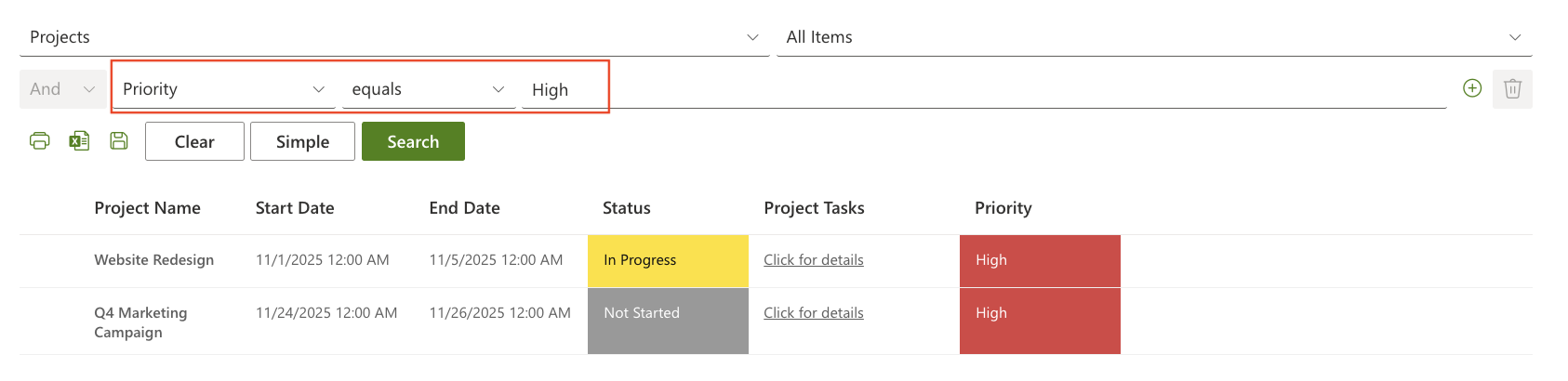
- Condition 2: Priority = High
- Operator between conditions: AND
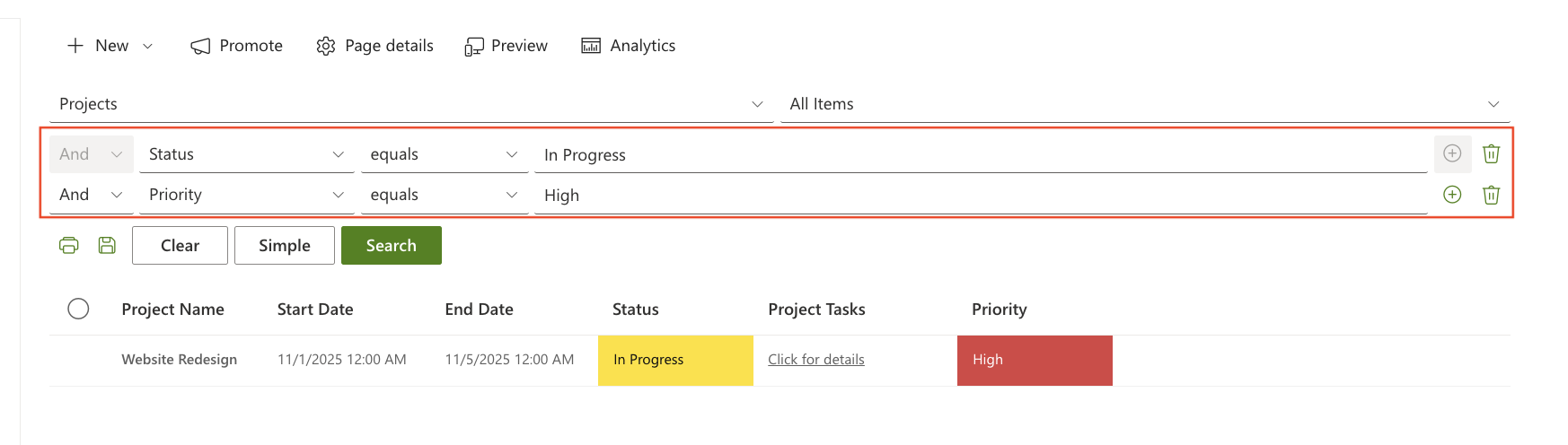
Expected result:
Only projects with the “In Progress” status and high priority appear because they meet both conditions.
Step 7: Example: Using OR Logic
Change the operator between conditions to OR:
- Status = In Progress
- OR
- Priority = High
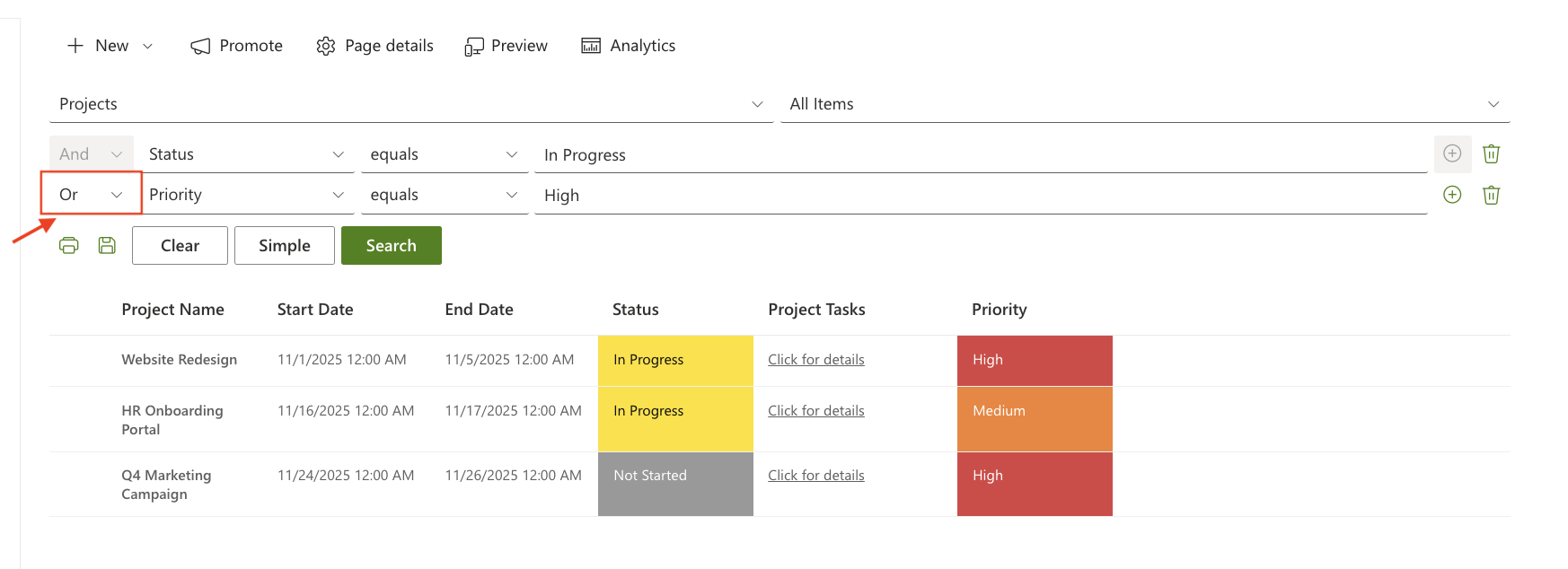
Expected result:
You will get more results: only projects with the “In Progress” status or high priority appear because they meet at least one of the conditions.
Step 8: Saving Advanced Search Conditions (Saved Searches)
If your profile has Allow saving search conditions enabled, users can save frequently used filters.
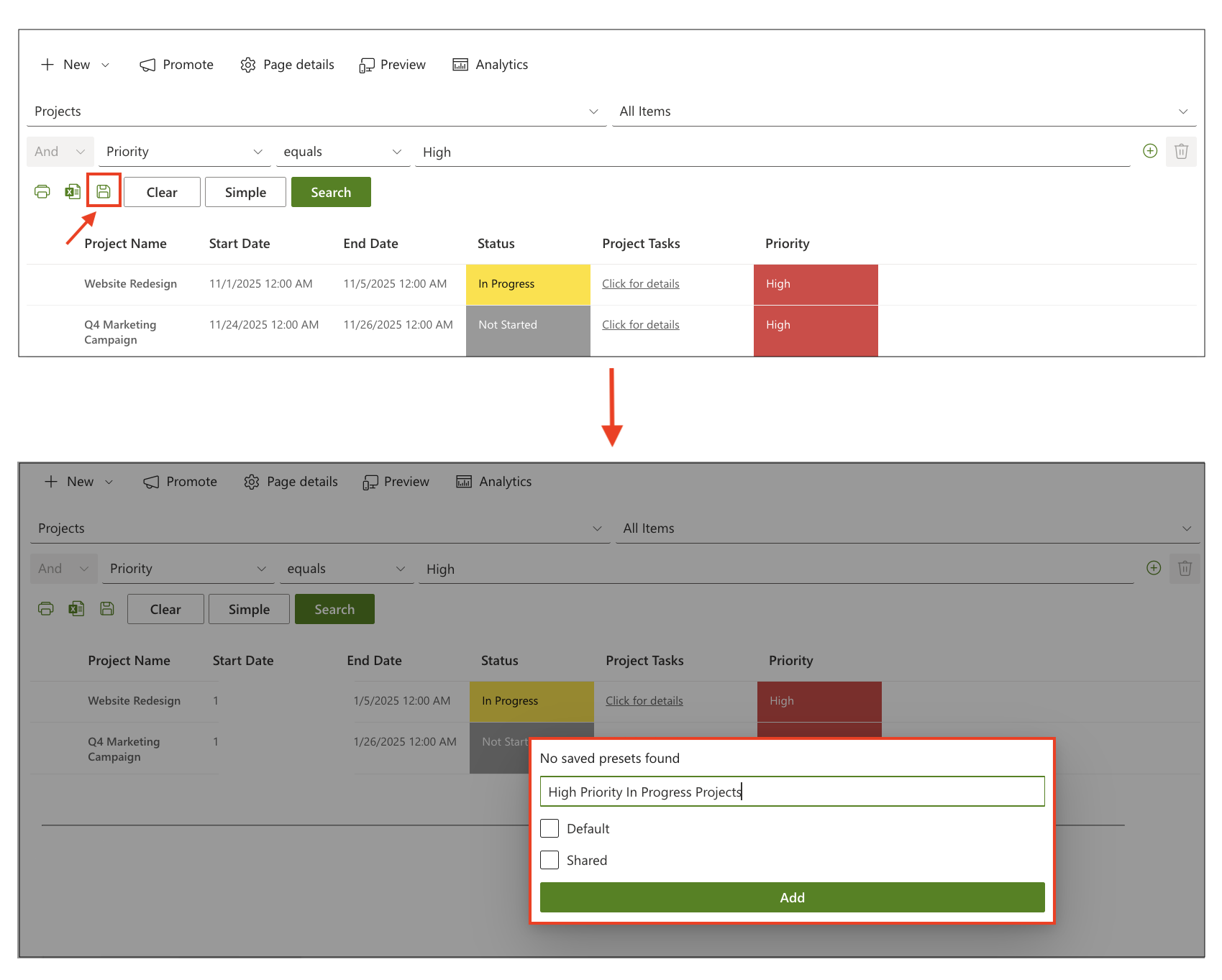
To save current conditions:
- Build the conditions.
- Click Save search.
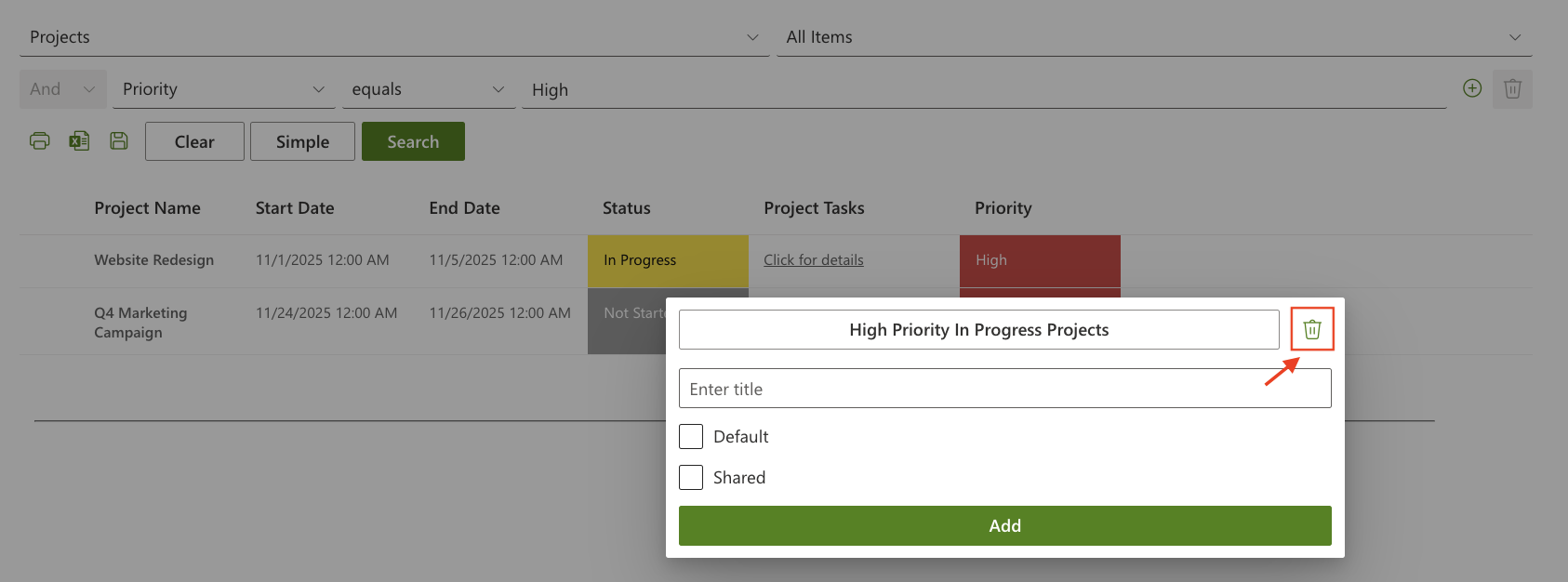
- Enter a name (e.g., High Priority In Progress Projects).
- Click Add.
Your saved search will appear in the Saved searches dropdown.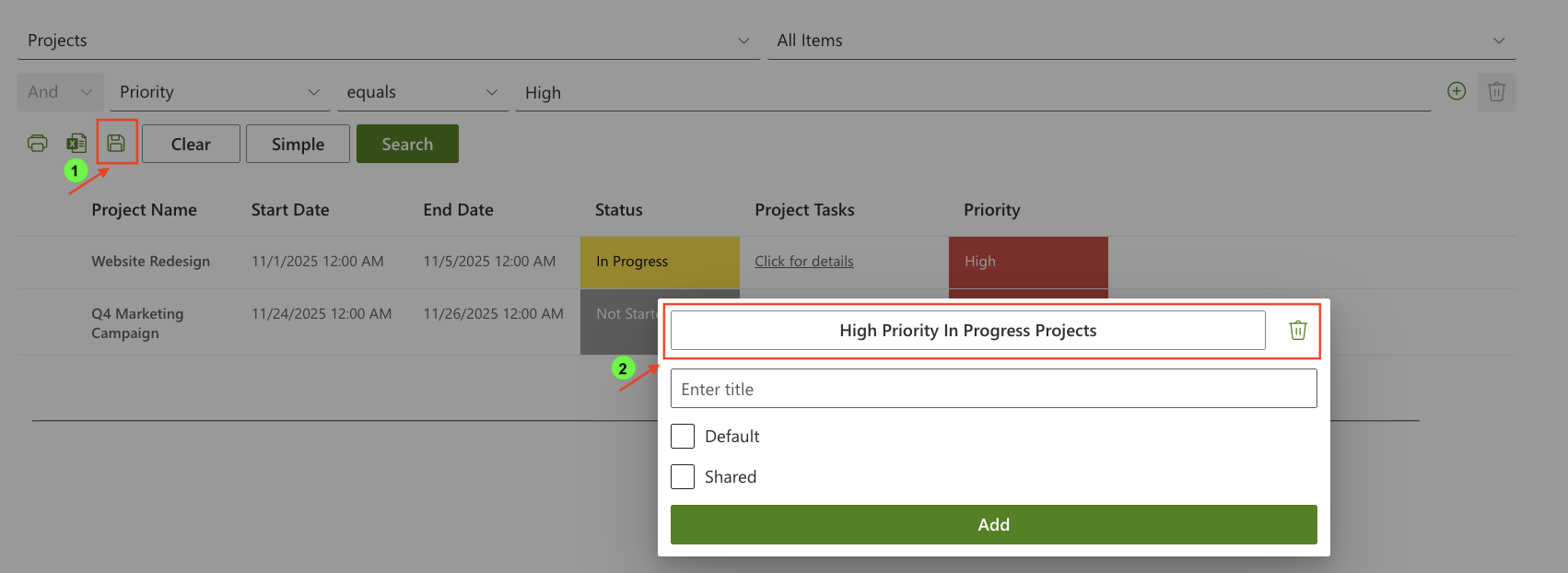
Using a Saved Search
- Open Saved searches.
- Select a saved filter.
- Conditions load instantly.
Deleting a Saved Search
- Open Saved searches.
- Click the delete icon next to the saved item.
In this tutorial, you learned how to use both Simple and Advanced Search modes:
- run quick keyword searches
- switch between lists
- build up to five conditions
- apply AND/OR logic
- save and reuse search conditions
These features make List Search a flexible and powerful tool for finding information across SharePoint.



