In large organizations, information often comes from multiple SharePoint lists — for example, Projects, Tasks, and Company Events.
The Event Calendar web part in Infowise Ultimate Forms for SharePoint allows you to combine all those lists into one synchronized and color-coded calendar view.
This tutorial explains how to connect three different SharePoint lists, assign each a distinct color and category, and manage them within a single unified calendar.
Step 1: Prepare the Source Lists
You’ll need three lists that contain date-based information:
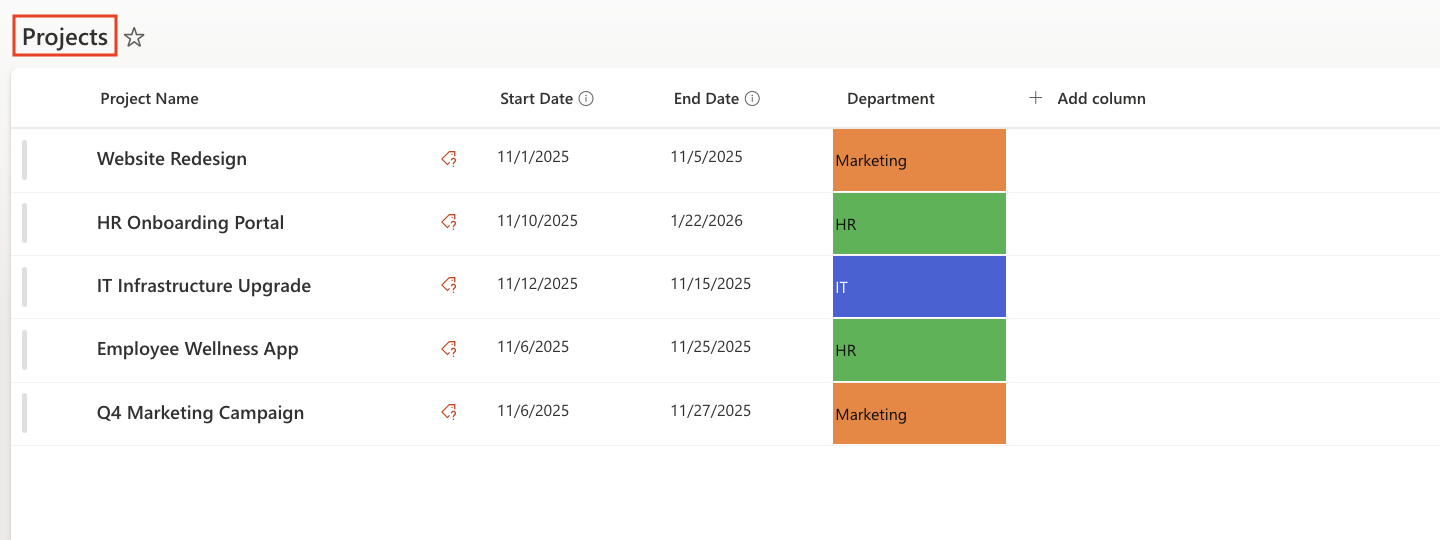
- Projects List
- Title (Single line of text)
- Start Date (Date and Time)
- End Date (Date and Time)
- Department (Color Choice — IT, HR, Marketing)
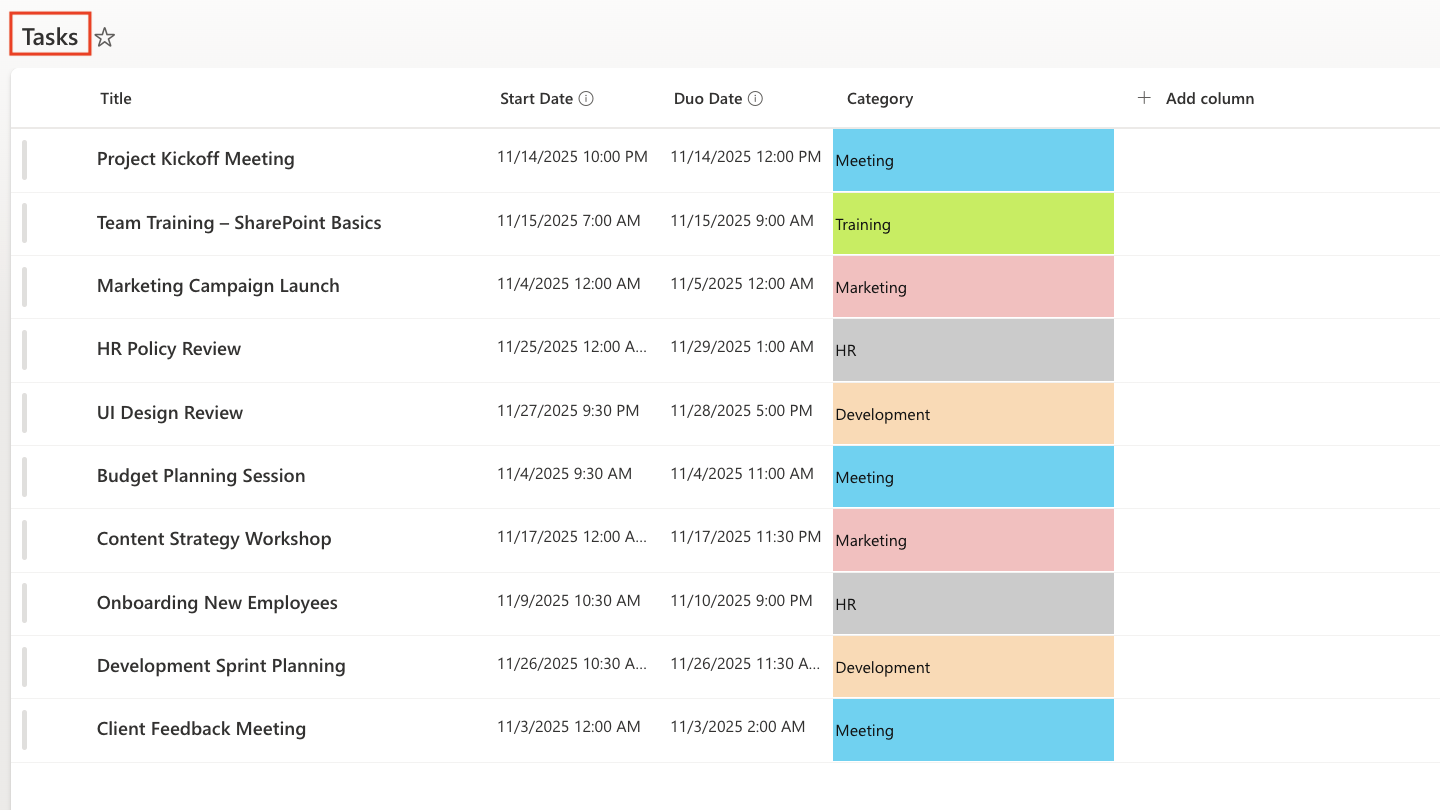
- Tasks List
- Title (Single line of text)
- Start Date (Date and Time)
- Due Date (Date and Time)
- Category (Color Choice — Meeting, Training, HR, Development)
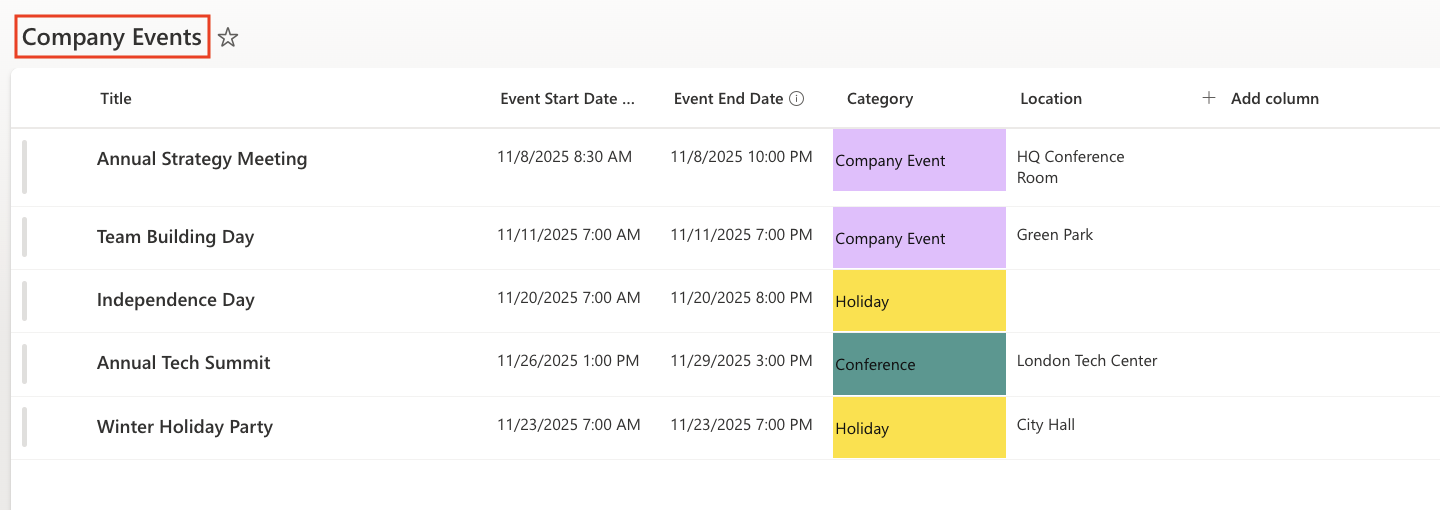
- Company Events List
- Title (Single line of text)
- Event Start Date (Date and Time)
- Event End Date Date (Date and Time)
- Category (Color Choice — Holiday, Company Event, Conference)
- Location (Single line of text)
Add several test items to each list — around 5–7 events per list.
This will help visualize the difference when we connect all three together.
Step 2: Create the Calendar Profile
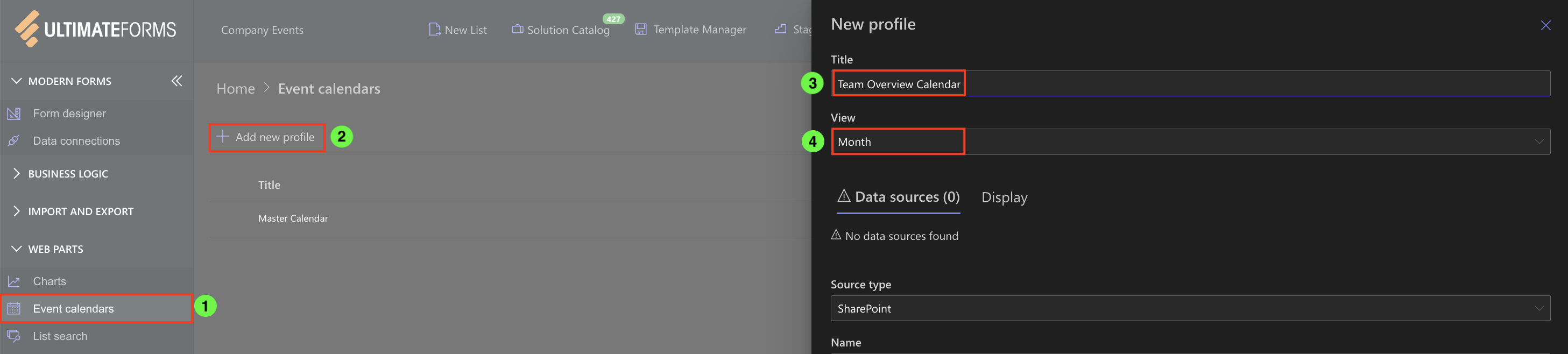
- Go to your site → click Ultimate Forms → Design.
- Under Web Parts, select Event Calendar.
- Click Add new profile.
- Name your profile — for example: Team Overview Calendar.
- For Default view, select Month.
Step 3: Add Data Sources
We’ll now add three separate lists as data sources.
Each list has its own color and field mappings (Title, Start Date, End Date, Category).
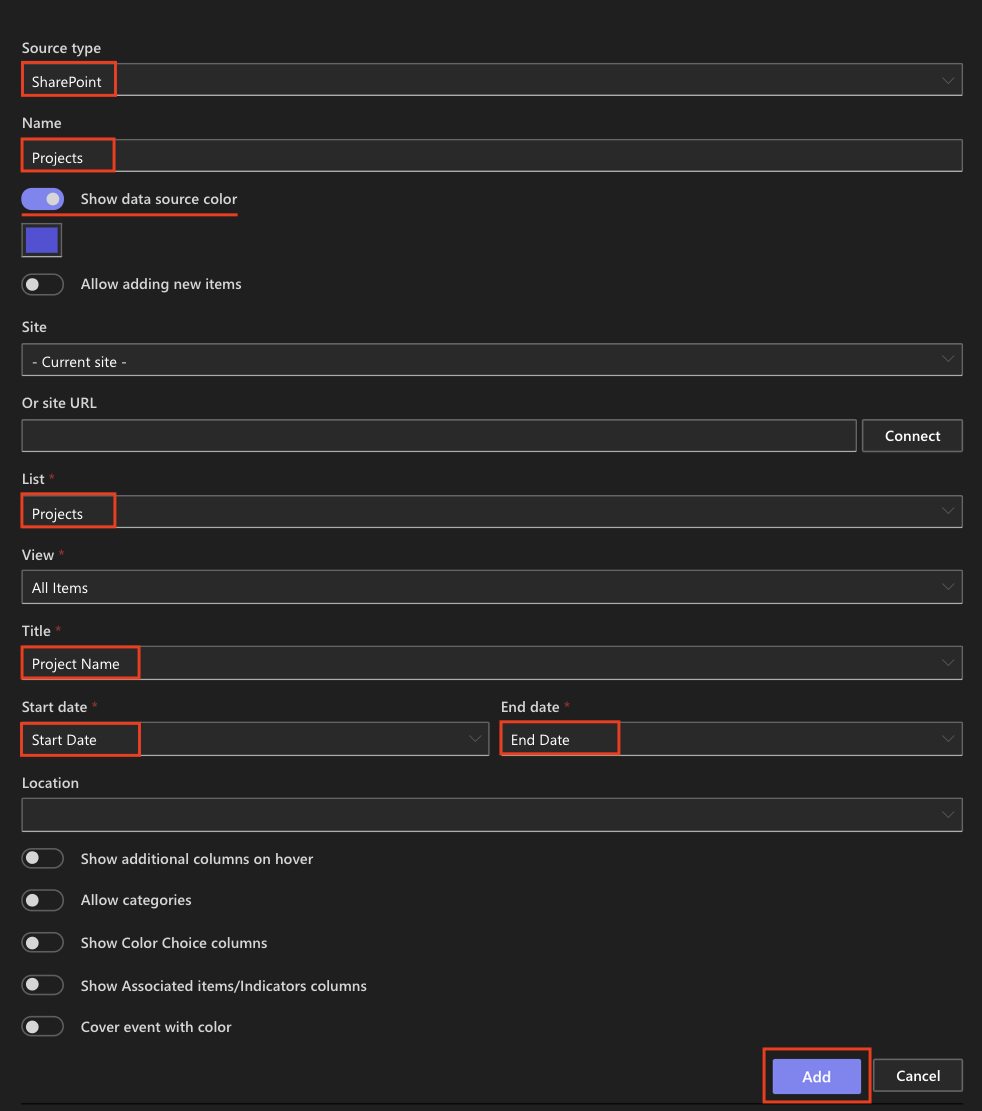
Source 1: Projects
- Type: SharePoint
- Name: Projects
- Show data source color✔️
- Color: Blue (#5252d9)
- List: Projects
- Field Mappings:
- Title → Project Name
- Start Date → Start Date
- End Date → End Date
- Add
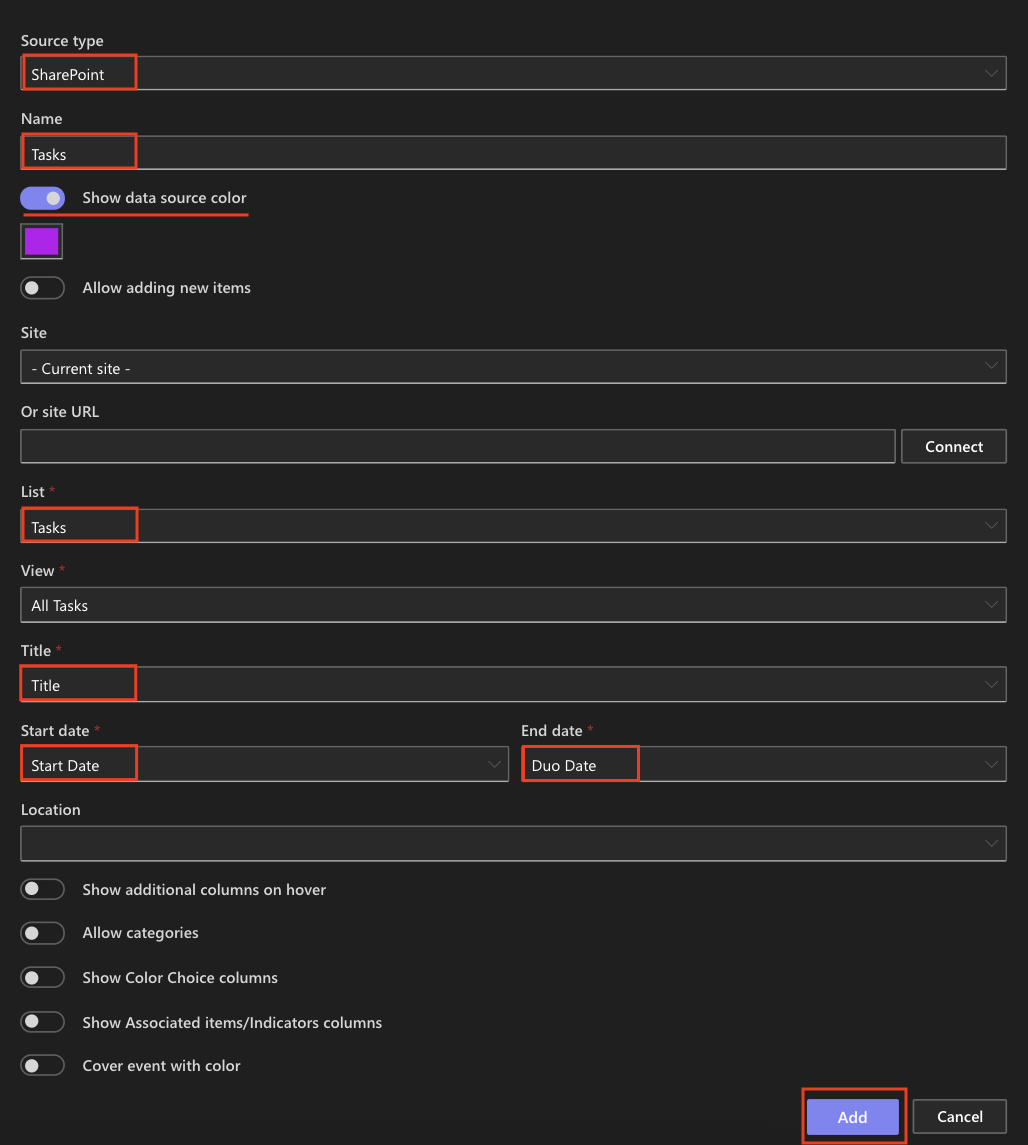
Source 2: Tasks
- Type: SharePoint
- Name: Tasks
- Show data source color✔️
- Color: Purple (#bd07f0)
- List: Tasks
- Field Mappings:
- Title → Title
- Start Date → Start Date
- End Date → Due Date
- Add
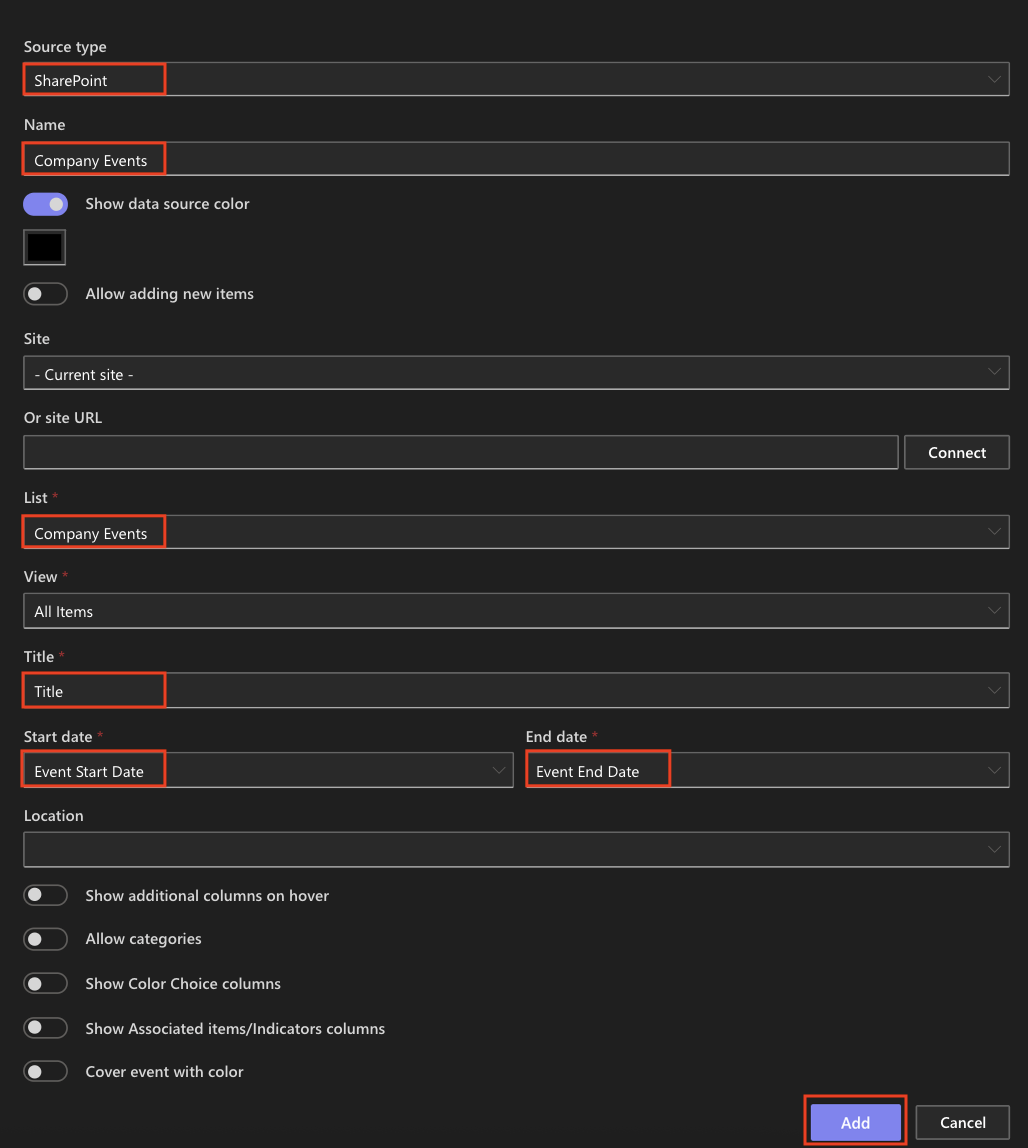
Source 3: Company Events
- Type: SharePoint
- Name: Company Events
- Show data source color✔️
- Color: Black (#000000)
- List: Company Events
- Field Mappings:
- Title → Title
- Start Date → Event Start Date
- End Date → Event End Date
- Add
- Save Profile
Step 4: Add the Calendar Web Part (SharePoint Online)
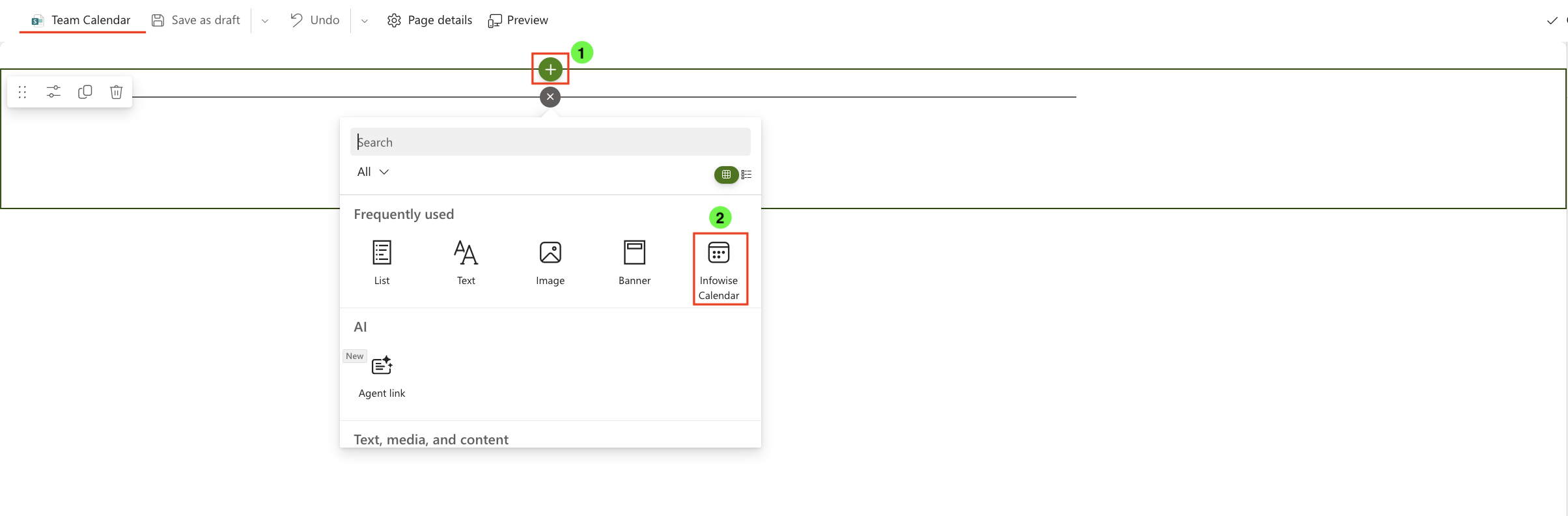
- Navigate to your site page (for example, “Team Calendar”).
- Click Edit in the top-right corner.
- Click + → Infowise Event Calendar to add the web part.
- Click Edit properties on the left side of the web part.

- In the properties panel, select your Profile (e.g., Team Overview Calendar).
- Click Publish the page.
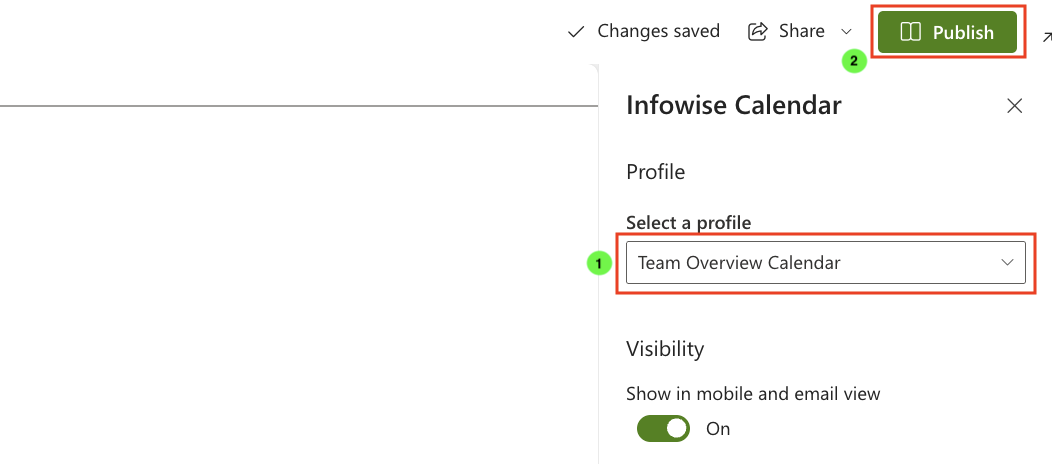
You’ll now see a fully functional calendar that merges all three data sources.
Step 5: Test the Display and Views
- Refresh the page to load the latest data.
- Use the data sources filter to display only events from the selected list.
- Use the top-right view selector to switch between:
- Day – detailed hourly schedule.
- Week – seven-day overview.
- Month – standard calendar grid.
- Gantt – timeline with task durations.

- Each data source (Projects, Tasks, Company Events) is displayed in its own assigned color, making it easy to distinguish them at a glance.
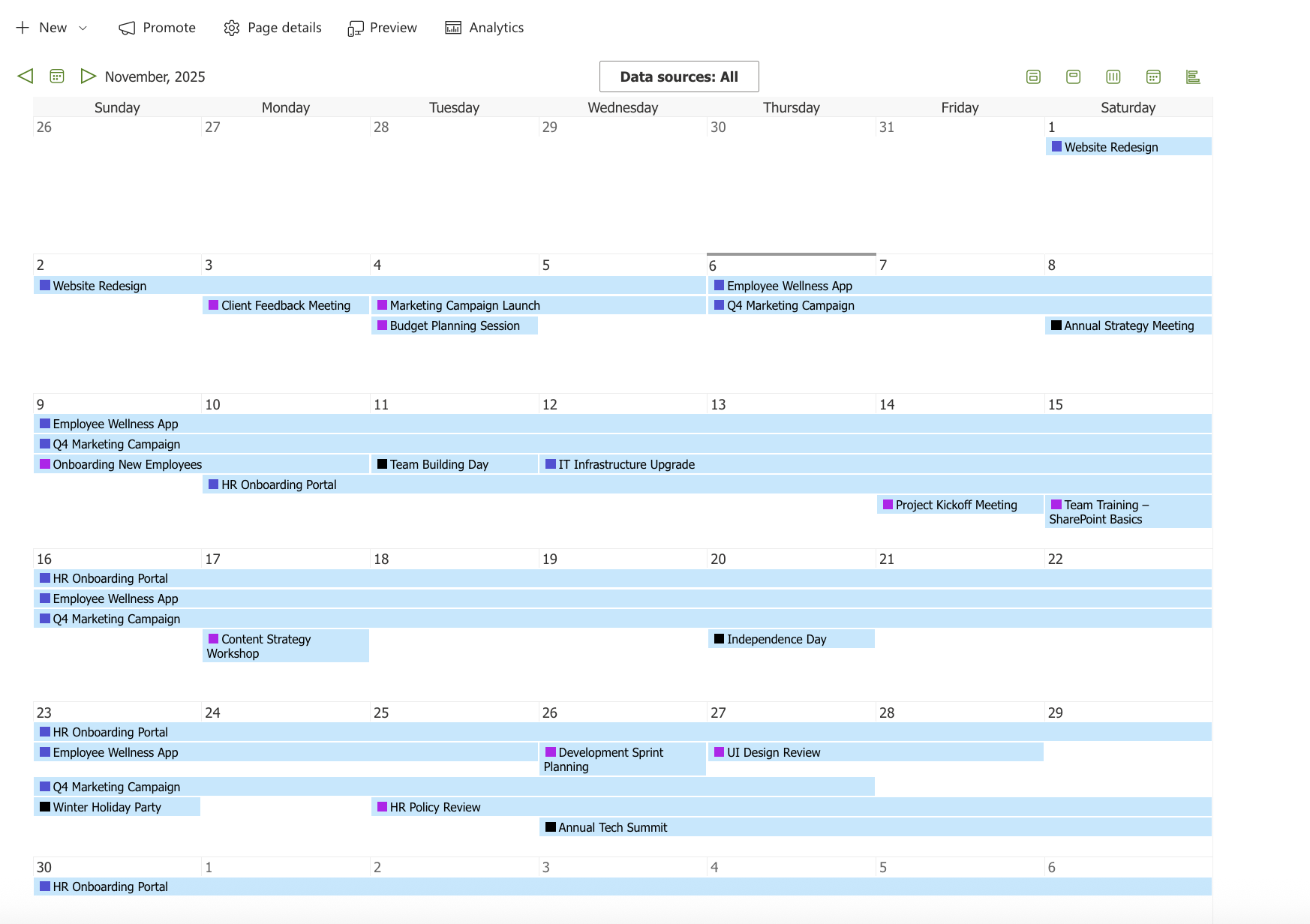
At this stage, colors represent only the data sources.
Step 6: Enable Color-Coding by Category
To make the calendar visually richer, you can enable color-based event highlighting for each data source.
- Go to Ultimate Forms → Design → Event Calendar.
- Edit your calendar profile.
- Open each data source (Projects, Tasks, Company Events) and scroll down to the Display Options section.
- Check both of the following options:
- Allow categories → select the Color Choice column (for example, Department or Category).
- Cover event with color → enables full background color based on the selected category.
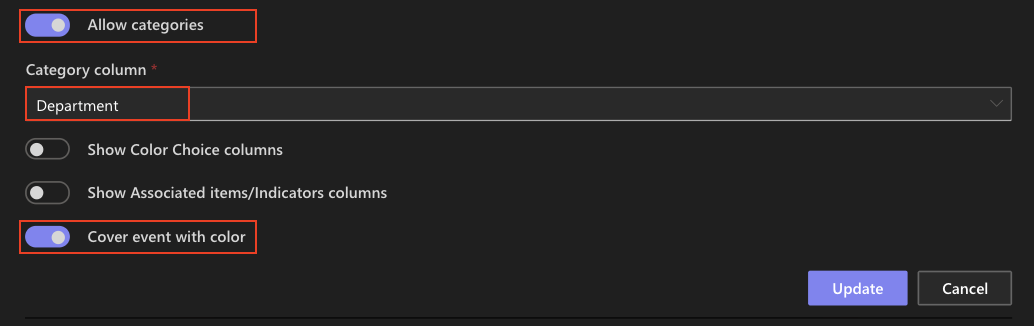
- Click Update → Save Profile.
- Return to your page and refresh the calendar.
Now:
- You can use the category filter to display only specific event types (e.g., Holiday or Conference) .
- Each data source retains its assigned outline color (Projects, Tasks, Company Events).
- Each event is fully colored according to its Category (e.g., Holiday in yellow, Company Event in purple, Conference in green).
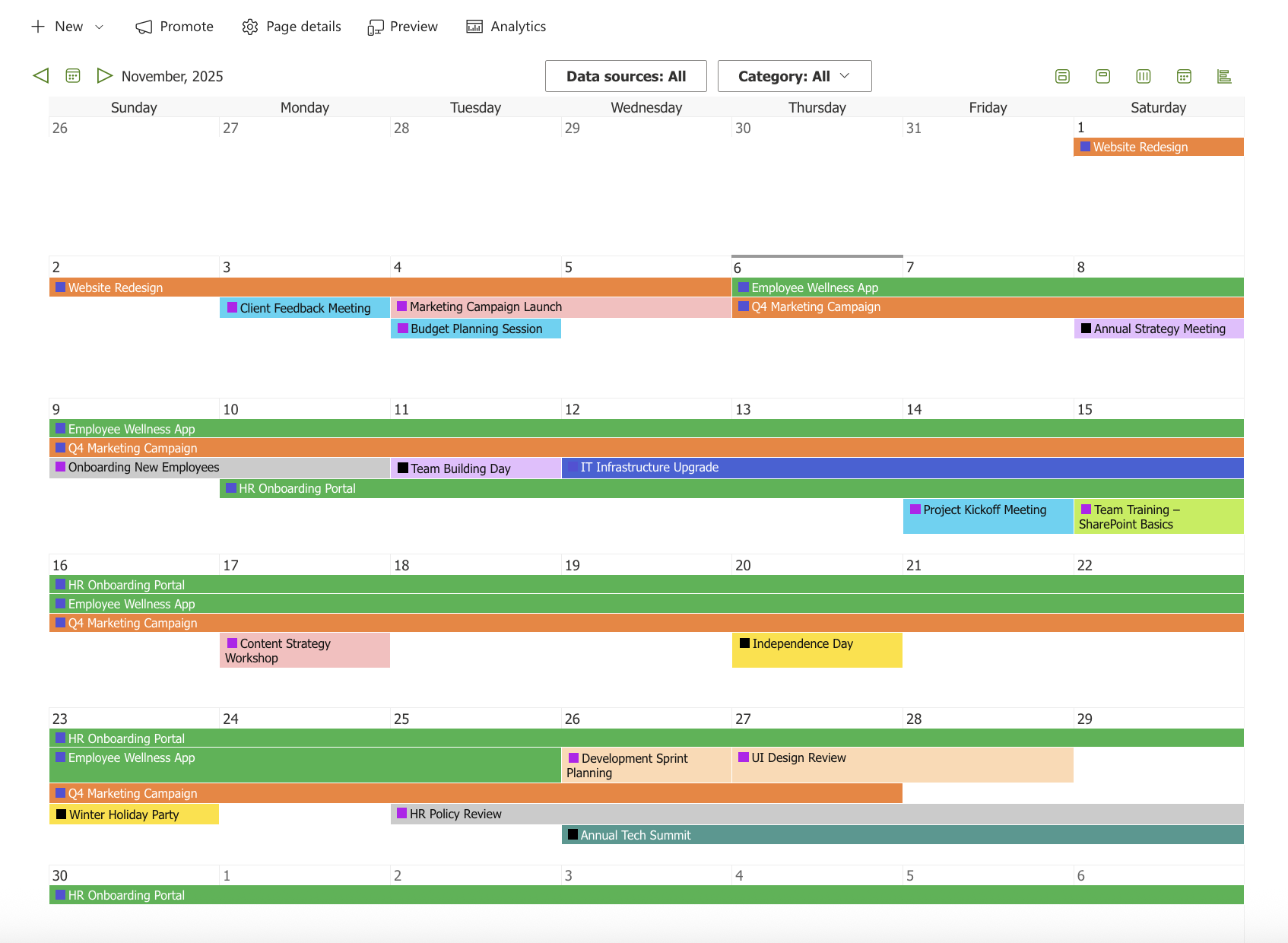
This tutorial demonstrated how to combine multiple SharePoint lists into a single unified calendar using Event Calendar in Infowise Ultimate Forms.
You learned how to create a calendar profile, connect data sources, and configure category-based color coding for better visualization.
Each data source is marked with its own color, and every event inherits its background color from the Color Choice column, resulting in a clear, dynamic, and visually engaging calendar view.



