NOTE: Monitoring features are available only in the Microsoft 365 version of Ultimate Forms.
The Microsoft 365 app version uses shared resources provided by the app, primarily the Azure Function Apps that execute the various background processes of the app. For instance, each time an action is executed, one of the function apps executes the process. That means usage of CPU and RAM resources, as well as taking up one of the available network connections.
The resources are shared between different tenants. It is our responsibility that one tenant is not using up more than their fair share of the resources. Exceeding the resource quota might impact other tenants.
That is why we developed a sophisticated throttling mechanism. It monitors usage by each tenant and automatically prevents abuse by halting execution or preventing further processes from being started.
You can monitor your execution and identify problems before they happen using Monitoring page within Ultimate Forms. Here you can see the potentially problematic sites and lists within your site collection. It helps you prevent any possible throttling errors before they occur.
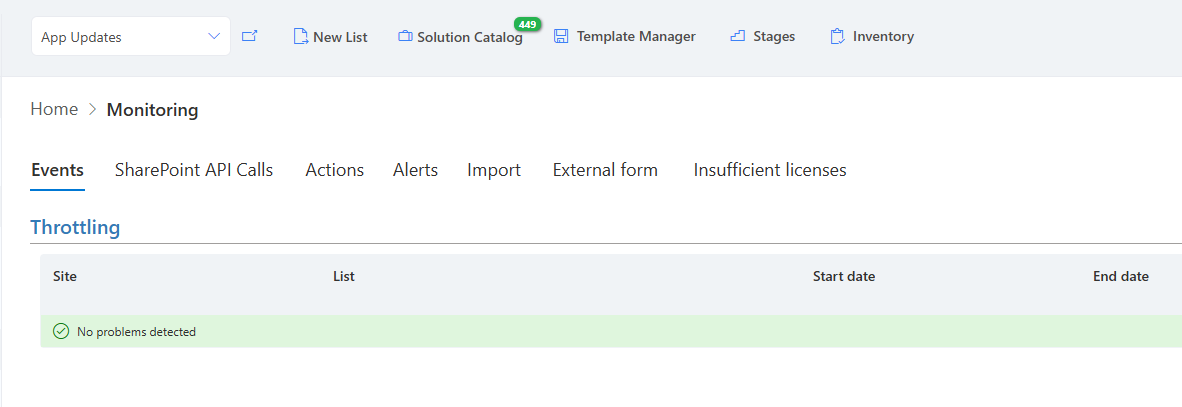
Event Monitoring
Each time an item is created, modified or deleted in a SharePoint list or document library, Ultimate Forms can subscribe to be notified. This happens automatically when you configure one of the event-driven components, such as Actions, Alerts or Associated Items Summary columns.
All notifications are handled in a centralized fashion for all components. The central event handling routine will then trigger individual components that registered to receive these notifications. The system monitors how often these notifications are triggered and will throttle them when an excessive number is detected. This is done at a list/library level. If for example, you consistently update hundreds of items in the same list within the same minute, you might get eventually throttled and no further events will be executed within the same one hour period.
We count the changes during each call that the list reports. If the number of changes exceed the threshold, those changes will be disregarded. For example, if a list reported 100 changes, that would be considered as first occurrence. For the first occurence, we will allow double that number (200). If the number of changes exceeds that, those changes would be disregarded. Consecutive calls that exceed 100 changes will be disregarded as well. Calls of below 100 or no calls at all will restart the process.
SharePoint API Calls
Ultimate Forms interacts with SharePoint by the means of API calls. SharePoint, like any other cloud-based service, applies limits to the number and frequency of such calls to prevent abuse. When these limits are exceeded, no new calls can be successfully handled and errors occur.
Actual limits are not disclosed by Microsoft, but from past experience executing thousands of calls per minute will result in being throttled. Read more in Microsoft documentation. The actual thresholds depend on many factors, such as:
- time of day
- the executing component
- the license level of the customer
Note that your chances of actually being throttled are very low. It will usually indicate some error in your settings. For instance, running an action that attempts to update hundreds of items in one go will most likely result in throttling. But a regular action that updates one or several items will run fine.
Another example: you run a large number of update in your list (for instance, some 3rd party sync or bulk update). It will result in a large number of alert requests being generated, which can also result in throttling. If you are planning to run bulk updates, consider turning on the Bulk Update Mode. It will to stop any actions/alerts from being executed during that time period.
The monitoring page helps you investigate and prevent any throttling issues by providing a clear and detailed view of the number of API calls per minute, site and component. You can see which component consumes an unusually high number of calls and on which site. Based on that you can investigate the configurations of Ultimate Forms components within the site to find the possible culprit.
It is recommended to review this reports from time to time to observe tendencies and resolve issues before they interfere with the business processes in the organization.
Component-specific Monitoring
For Actions, Alerts and Import the duration of execution is also measured. This is the length of execution time for a single process. For instance, how long it takes for an action to execute. If the duration exceeds the predefined threshold, it is halted with an error. The usual limit for a medium-large customer is 500 second during peak time and 1500 seconds during off-peak hours.
Also for Actions, Alerts and Import the number of critical (fatal) errors encountered by lists on the current site is displayed. Critical errors are ones that prevented execution of the components after 5 attempts. In most cases, critical errors would indicate a state of being throttled by SharePoint itself due to high volume of operations, exceeding throttling limits. You should examine your automation rules, add-ons, custom code and Power Automate flows. Make sure you are not performing excessive calls into SharePoint API, using the dedicated tab under Monitoring.
External Form Monitoring
External forms are a powerful tool that allows you to expose internal SharePoint forms to be filled out by anonymous external users. They can be used to collect information from vendors, suppliers, partners, customers and general public. They ensure that the data is collected safely, without granting access to the internal SharePoint environment.
But as with anything being exposed outside of the organization, great care must be exercised to ensure it is done safely and according to the guidelines. For example, exposing just the New form is generally safe. But allowing access to Display and Edit form must be only done in specific situations, ensuring risks are well understood.
The External forms monitoring page allows adminstrators to have a centralized look at all the external forms in the tenant. Reviewing the list from time to time ensures the highest level of operational security.
Insufficient Licenses
Ultimate Forms is licensed according to the number of users utlizing its services. It allows organizations a flexible payment structure, maximizing their investment and minimizing the cost. Organizations should thrive to license the most accurate number of seat to avoid overpaying for services they do not consume.
However the number of users in any organization might fluctuate significantly over time. As Ultimate Forms licenses are given out on "first come / first served" basis. If the number of purchased licenses is insufficient, users will be denied licensed and lose access to capabilities. That might result in forms that do not load or alert interface that is blocked.
The Insufficient licenses monitoring page provides you with information where an insufficient license situation has occurred and resolve the issues in time.



