- Create a new list item or edit an existing one.
- If you specified parent columns for the external data lookup, select values in those columns. It will ensure the correct query is passed to the external data source.
- Enter or select the desired key value for retrieval.
- If you column requires "Get" buttons, click on it.
- The value[s] will be retrieved from the data source.
- Save the item.
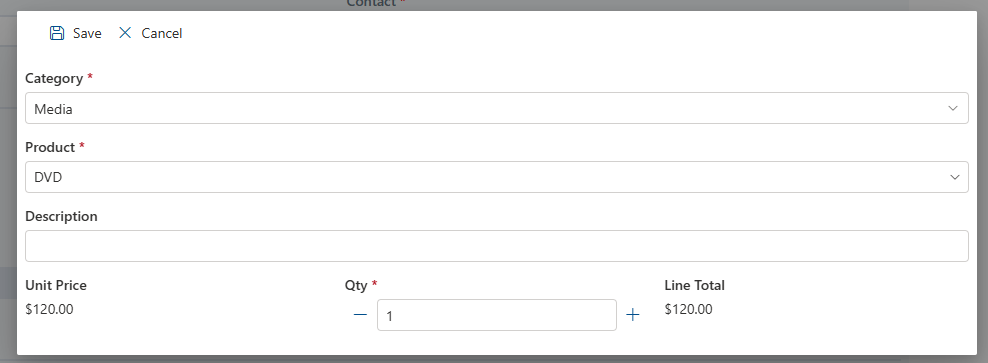
In my example here, Product is an external data lookup. It retrieves information from an external database, based on the passed Category value. The key value is the product name, while the secondary column is the unit price. Once retrieved, the unit price behaves as any other numeric SharePoint column. For example, it can be used in calculations. Shown here is the automatically calculated Line Total value based on the Unit Price (a secondary external lookup) and Qty (a simple SharePoint Number column). The calculation is performed using a Value rule on the form itself and happens in real time.
Note that external data lookups do not display the external values in real time when viewing the SharePoint items. The data is retrieved and entered into the SharePoint item when you edit the form only. It is a snapshot of the data as was present in the external system at that particular moment.



