Why Ultimate Forms Features May Stop Loading in SharePoint After March 1st and How to Fix It
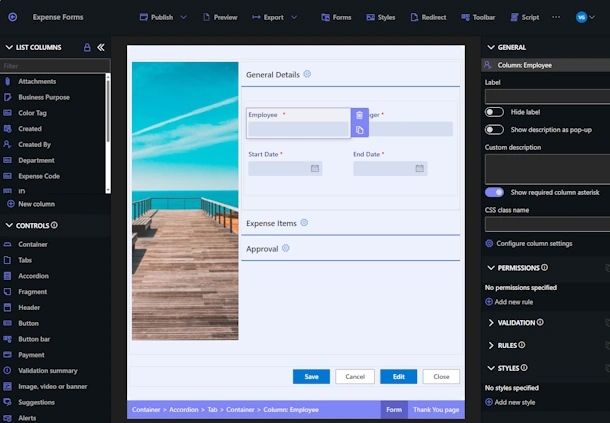
Organizations that installed Infowise Ultimate Forms several years ago may start noticing an issue beginning March 1st where forms, web parts, or other client-side features stop loading in SharePoint. Instead of the expected interface, users may see blank areas with errors where forms or web parts should appear.
This change is related to a SharePoint security update. Microsoft has started enforcing stricter Content Security Policy (CSP) rules that require administrators to explicitly define trusted script sources. If these trusted sources are not configured, SharePoint blocks the scripts that Ultimate Forms uses to render forms and web parts.
The good news is that the issue is easy to resolve by adding the required trusted source URLs.
What Happens When Trusted Sources Are Missing
Ultimate Forms relies on client-side scripts to render many of its features directly inside SharePoint pages. These include:
-
Ultimate Forms custom forms
-
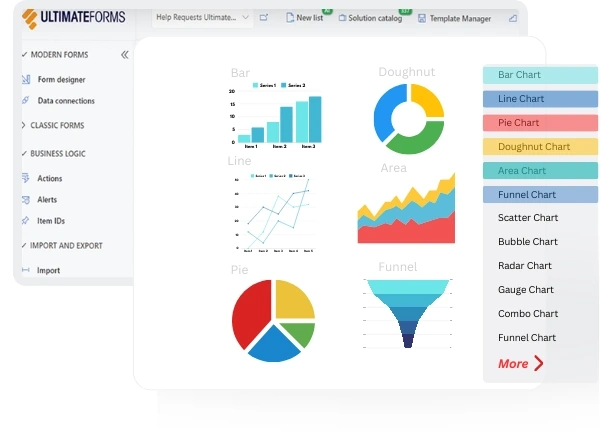
Web parts such as rollups, counters, and charts
When SharePoint does not recognize the domain that delivers these scripts as trusted, the browser blocks them. As a result:
-
Forms may not appear
-
Web parts may show errors
- Certain controls, such as maps or payments, do not appear
This does not indicate a problem with Ultimate Forms itself. SharePoint is simply preventing scripts from running until the source is marked as trusted.
Why This Is Appearing Now
Many long time customers installed Ultimate Forms in environments when SharePoint security rules were less strict. In those environments, scripts could load without explicitly defining trusted domains.
Starting March 1st, SharePoint began enforcing the requirement that script sources must be listed as trusted locations. Newer installations already did so automatically during the installation. Older environments that never added these entries may now experience blocked scripts.
This is why systems that have worked for years may suddenly appear to break even though nothing changed in the Ultimate Forms configuration.
Trusted Source URLs
Certain trusted URLs must be configured for Ultimate Forms to function correctly. These represent the domains that host the client side scripts used by the product.
When these required URLs are missing, SharePoint blocks the scripts and prevents Ultimate Forms components from loading.
The required trusted locations include:
-
Infowise script delivery endpoint - used for forms and other web parts. This URL is required for all.
-
Google Maps script location - used by Location control in forms. Required if you are using Location columns.
-
Payment script locations - PayPal, Strip and Authorize.Net. Required if you use any of these services.
Once these domains are added as trusted sources, SharePoint allows the scripts to run and all client side functionality loads normally.
How to Add Trusted Sources
To resolve the issue, an administrator simply needs to add the trusted source URLs in SharePoint.
The general process is:
-
Open SharePoint administration settings. Click on the waffle menu in top left corner, select Admin, then in the left menu select SharePoint.
-
Navigate to the Script sources under Advanced.
-
Add the required trusted URLs listed in the Ultimate Forms documentation.
-
Save the configuration.
Once these entries are added, reload the affected SharePoint page. It might take a few minutes to take effect.
The forms and web parts will begin loading again.
Add your comment