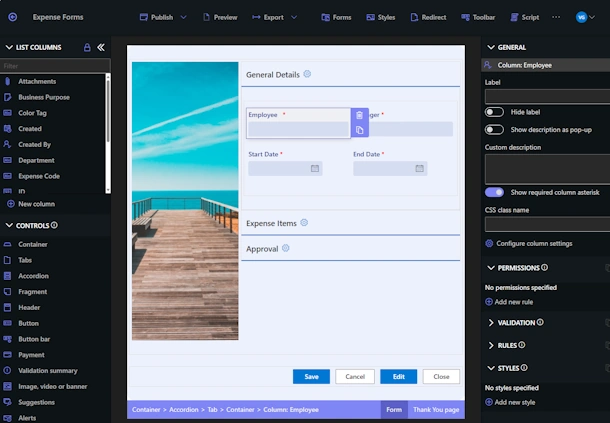
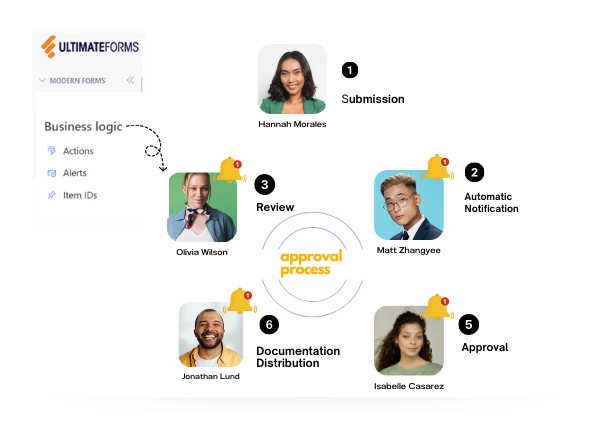
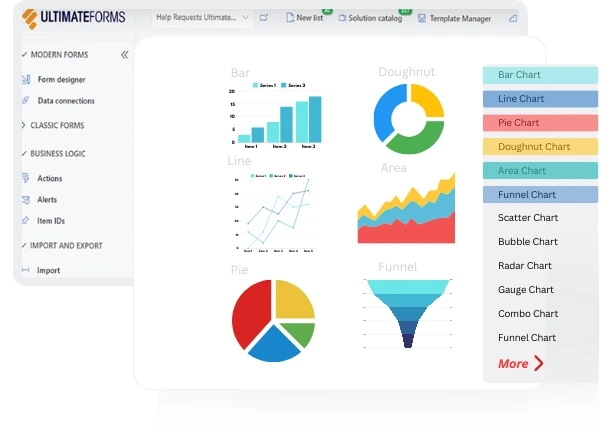
Manual actions in Ultimate Forms can decide for themselves who sees their buttons, and when. Visibility rules on the Run Action feature show or hide each action's execution button in the SharePoint command bar based on the current user or group, on conditions over the item's values, or both, so a Complete Project button simply is not there once Status reads Completed, and an Escalate button exists only for the support leads allowed to use it. The command bar stops being a fixed menu and becomes a live reflection of what can actually be done, by this person, to this item, right now. This guide covers how the rules work, the patterns they enable, and the design habits that make action menus trustworthy.
The button that should not be there
Manual actions are the human-triggered side of the actions engine: operations like Complete Project, Escalate Ticket, Generate Contract, or Submit for Approval, configured once and run on demand from the Run Action buttons in the list or library command bar. They are the fastest way to put real operations one click from the data, which is exactly why their visibility deserves rules.
A button is a promise. When the command bar offers Complete Project on a project that is already completed, the promise is false, and something unwelcome happens on every path: the user clicks and produces a redundant or damaging update, or the action's own conditions silently refuse and the user wonders what broke, or the user hesitates, asks, and a two-second operation becomes a support thread. Multiply by every action and every user who should not run it, the intern seeing Approve Invoice, the requester seeing Escalate, and the command bar degrades into a menu of things mostly not meant for you, where the one button that is yours hides among six that are not.
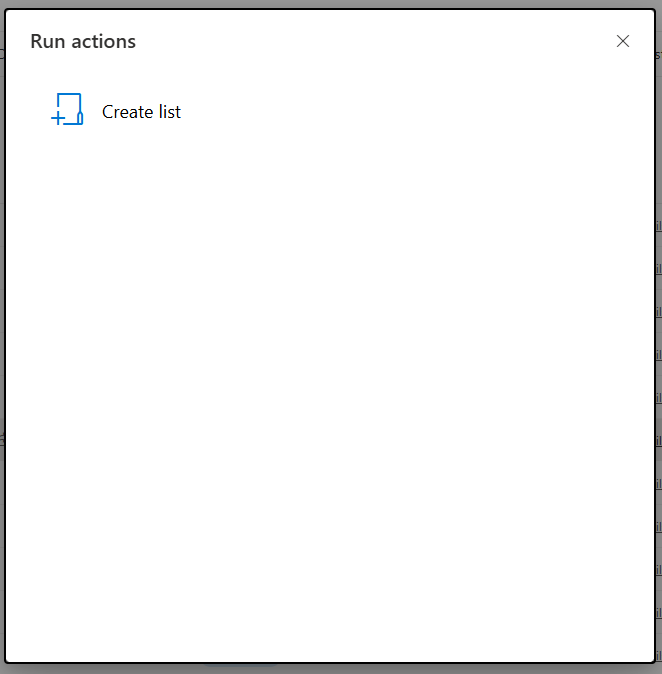
The old mitigation was discipline: name buttons carefully, train users, let the action's execution conditions catch the wrong clicks. Visibility rules replace the mitigation with the obvious fix. The wrong button is not disabled, not refused at runtime, but absent, and absence is the one interface message nobody misreads.
What the rules evaluate
Each manual action's visibility rule combines two questions, usable separately or together.
Who is looking. Rules target users and groups: Escalate for the Support Leads group, Approve Discount for Sales Managers, Archive for site owners. The same list serves every audience, and each person's command bar carries their own vocabulary of operations, the same principle that tab permissions apply inside the form, extended to the command bar.
What the item says. Conditions read the selected item's values: show Complete Project only while Status is not Completed, show Submit for Approval only while the record is in Draft, show Generate Renewal only when the expiry date is near. The button tracks the item's state, appearing when the operation makes sense and retiring when it no longer does.
The combination is where processes get expressed precisely: "Sales Managers, while Status equals Pending Discount Approval" describes both the actor and the moment, and reads exactly as it executes, the same condition grammar used by the four rule types on forms, with no code anywhere.
The patterns this unlocks
The state machine in the command bar. Give each stage of a process its own manual action, and condition each button on the stage it belongs to: Submit appears in Draft, Approve in Submitted, Close in Approved, Reopen in Closed and only for managers. The user never consults a diagram, because the command bar is the diagram: whatever buttons are present are the legal moves from here. This is the staged-process pattern surfacing in the list itself, without opening the form.
The role-scoped operation. Dangerous or privileged actions, bulk updates, permission changes, deletions, archive sweeps, exist only for the roles entitled to them. Everyone else does not see a disabled control to wonder about; they see nothing, and the question "what does this button do and may I press it" never gets asked.
The guard against double execution. Any action that should run once per item, generate the contract, assign the reference number, send the welcome pack, hides behind a condition on its own evidence: once Contract Generated is set, Generate Contract is gone. The cheapest idempotency mechanism available is the button removing itself.
The deadline-driven appearance. Conditions on dates make buttons seasonal: Extend Deadline appears in the final week, Renew appears inside the renewal window, Expedite appears when the SLA clock runs low. The command bar quietly surfaces the operation at the moment it becomes relevant, which beats any reminder email at directing attention.
Setting it up
The configuration lives with the action itself. Create or open the manual action, the kind triggered from the command bar rather than by events or timers, and add its visibility rule: pick the users or groups, write the condition over the item's columns, or both. Save, and the Run Action buttons obey immediately, evaluated per user and per selected item.
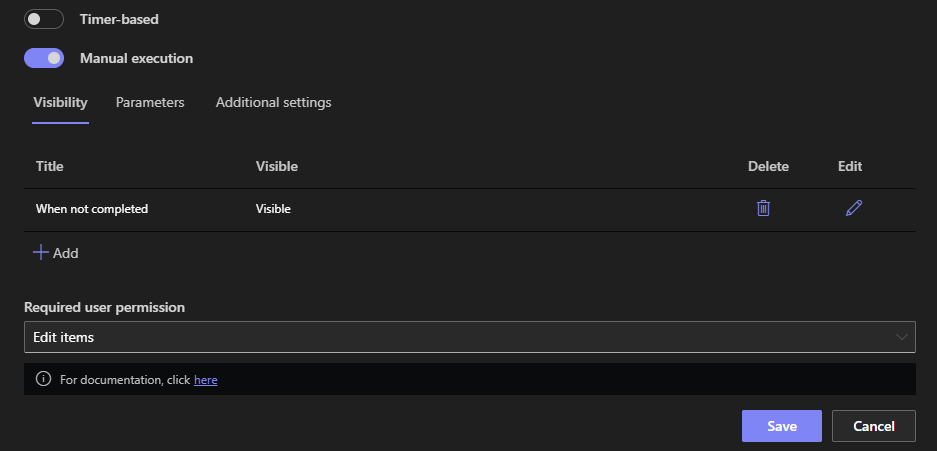
Two details complete the picture. The visibility rule governs the button; the action's own execution conditions still apply when it runs, so the runtime guard remains underneath the interface one, belt and braces, with the rule handling the experience and the condition handling the enforcement. And rules evaluate against the selected item, so the same command bar shows different buttons for different selections, which is precisely the point.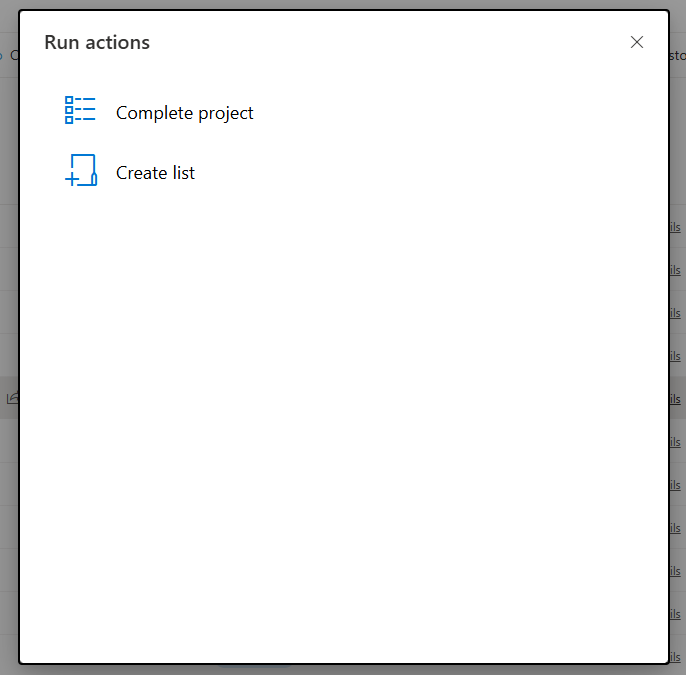
The same thinking extends across the surfaces where actions meet people: action buttons on the form itself carry their own show/hide logic, buttons inside alert emails put the operation in the inbox, and the configurable toolbar sets the standard commands' vocabulary. Visibility rules bring the command bar, the last fixed surface, into the same discipline: every button a user sees is one they may press, wherever they see it.
Designing action menus people trust
Three habits turn the mechanism into good interfaces. Hide by state, not by hope: the condition should read the authoritative column, Status, the stamped date, the generated flag, so the button's presence is evidence, never guesswork, which also means the columns themselves must be protected from casual editing. Keep the menu short and literal: a command bar with two or three precisely named, correctly scoped buttons gets confident clicks, and an action that fits only one narrow case deserves a narrow rule rather than a broad audience. And cover the inverse deliberately: when Reopen should exist exactly where Close does not, write both rules against the same column and test the transition, because a state with zero available actions is a dead end users will find before you do.
The payoff compounds the way all interface subtraction does. Fewer wrong clicks means fewer damaged records and fewer apologetic corrections. Fewer visible-but-forbidden buttons means fewer questions and less training. And a command bar that always tells the truth builds the quiet confidence that makes people use the fast path instead of asking someone, which was the reason the manual action existed at all.
Add your comment