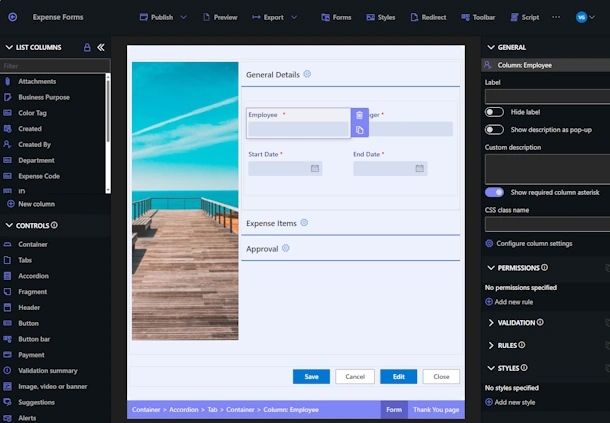
You can paste an image directly into a SharePoint multiple lines of text column and have it survive the save. In Ultimate Forms modern forms, the rich text column takes one extra setting, a document or image library where pasted images should live, and from then on every image a user pastes is uploaded there automatically and referenced by URL, so SharePoint never strips it from the content. Users just paste; the plumbing is invisible. This guide explains the disappearing-image problem this solves, the three-step configuration, and the housekeeping that keeps the image library tidy for years.
The most versatile column, with one famous trap
The multiple lines of text column, in its enhanced rich text mode, is one of the most versatile column types SharePoint has: formatted text, links, images, and other visual elements, edited like any text editor. It is the natural home for content that is more narrative than data, the issue description, the resolution notes, the instructions, the meeting summary.
And it carries one trap every SharePoint veteran has fallen into. Paste an image into the column in the modern UI and it looks perfectly fine while you edit. Save the item, and unless that image was separately uploaded somewhere first, it is simply gone. No warning, no error, just a description that said "see the screenshot below" above an empty space. The reason is mechanical: a pasted image is embedded content with nowhere to live, and SharePoint discards what it cannot anchor to a stored file. The user experience, though, reads as betrayal, the form showed the image and then silently threw it away, and users who get burned once respond rationally: they stop pasting images, and the descriptions get worse.
The workaround SharePoint expects, upload the image to a library first, copy its address, then insert by URL, is a four-step ceremony nobody performs for a quick screenshot. So the real-world outcome of the trap is thousands of tickets and records whose pictures live in email threads instead of in the items they describe.
The fix: paste, and let the form do the ceremony
Ultimate Forms modern forms enhance the rich text column to make embedding effortless: specify a SharePoint document or image library in the column's settings on the form, and the form automatically uploads every pasted image to that library and rewrites the content to use the uploaded image's URL, exactly the anchored form SharePoint will not strip. The four-step ceremony still happens; it just happens in code, in an instant, on save. Users don't need to know any of these details. They paste, they save, it works.
That transparency is the point worth pausing on. Data quality features succeed only when they cost users nothing, and this one is invisible: the paste gesture people already use everywhere else, Word, email, Teams, now simply works in SharePoint forms too.
Setting it up
Three steps, all inside Form Designer.
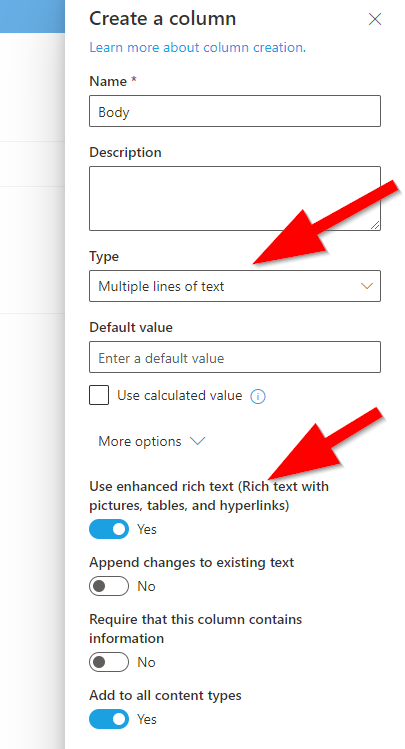
Create or pick the column. Use a multiple lines of text column with Enhanced rich text mode enabled, an existing one or a new one. You can create it directly in Form Designer, keeping the whole configuration in one place:
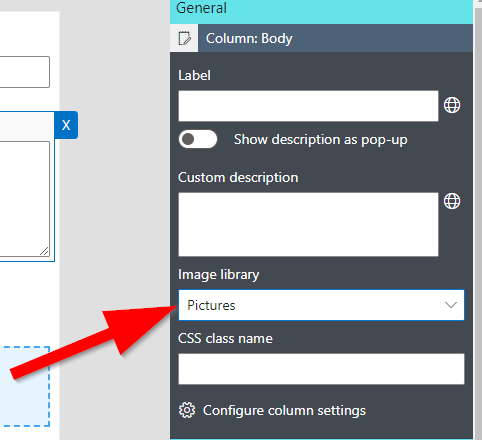
Point it at a library. In Form Designer, select the column on the canvas (drag it from the column gallery on the left if it isn't there yet), and in its properties choose a document or image library in the same SharePoint site to store the images:
Create a new, dedicated library for this rather than reusing a working one, for reasons covered below.
Publish the form. That's the whole configuration.
See it work
Open the form, copy any image from anywhere, a screenshot tool is the everyday source, and paste it straight into the rich text column:
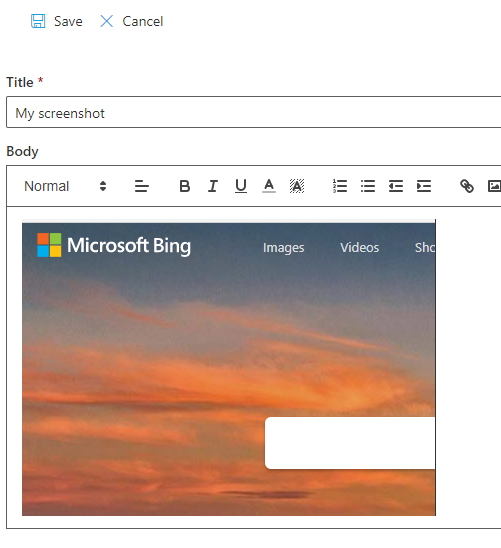
Save the item. The image is preserved, and displays everywhere the column does, including list views:
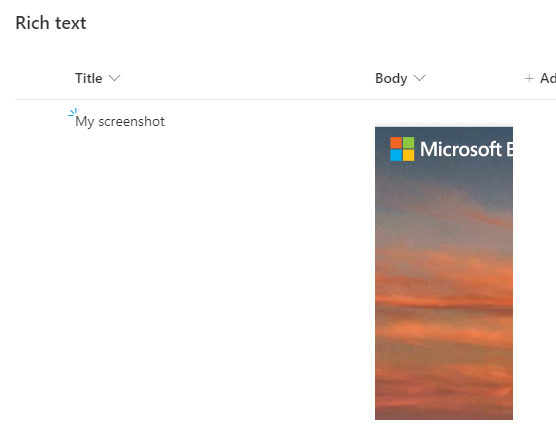
Behind the scenes, each item's images are uploaded into a folder with a unique generated name, which is what guarantees one item's images can never overwrite another's, two tickets can both paste a file called image.png without collision.
Housekeeping: one library, many lists, zero attention
The unique-folder mechanism has a practical consequence: the storage library fills with machine-named folders that mean nothing to a human browsing it. That is why the dedicated library matters, it isn't a workspace, it's plumbing, and mixing it into a library users browse daily buries their documents among generated folders. Give the plumbing its own pipe: one library, named something like Form Images, excluded from navigation.
The economics of that library are pleasingly boring. Because folder names are strictly unique per item, a single library can serve every list on the site, one plumbing library per site, not per list, created once and forgotten. It requires no maintenance, no reorganization, and no user training, because no user ever needs to open it.
Where pasted images earn their keep
The capability sounds small until you watch where it lands. Help desk tickets are the headline case: "it shows an error" becomes the error, pasted into the description, and the technician starts diagnosing instead of requesting a screenshot by reply. Knowledge base articles and work instructions get annotated images exactly where the words need them, the settings dialog beside the sentence describing it. Resolution notes show the after alongside the before. QA findings, change requests, design feedback, anything where the picture is part of the narrative rather than an exhibit, reads the way its author meant it to.
The narrative distinction is the guide for choosing between this and SharePoint's other image homes. When images are woven into text, an explanation with pictures, the rich text column is the right vehicle. When the image is a discrete artifact of the process, the receipt, the site photo, the damage picture, a dedicated picture field is better structure, especially from a phone, as covered in Capture Photos on Your Phone with SharePoint Forms and Getting Pictures to SharePoint Has Never Been Easier. The two coexist happily on one form: the inspection's photos in picture fields, the inspector's annotated commentary in rich text.
However you mix them, the underlying rule of engaging content holds: people describe with pictures when pictures cost a paste, and they don't when pictures cost a procedure. Remove the procedure, and your forms start receiving the descriptions your processes always needed.
Add your comment