Task management is one of the most common business needs in SharePoint. Teams want a simple way to assign tasks, track progress, send reminders, and stay aligned. Yet many organizations struggle to build something that is both powerful and easy to use.
Out of the box, SharePoint task lists are limited. Power Apps and Power Automate promise flexibility but often introduce complexity, long build times, and a steep learning curve, especially for non-technical users.
Ultimate Forms offers a faster and simpler approach. It allows organizations to build fully functional task management solutions directly in SharePoint, without coding and without relying on Power Apps or Power Automate.
This article explains how Ultimate Forms simplifies task management, why it is faster to implement, and how non-technical users can create real solutions in hours instead of weeks.
Why Task Management in SharePoint Often Becomes Complicated
Most teams start with good intentions. They create a list, add a few columns, and quickly realize they need more.
Common requirements include:
-
Assigning tasks to individuals or groups
-
Tracking status and priority
-
Sending notifications when tasks change
-
Preventing users from editing completed tasks
-
Displaying tasks differently based on role
-
Printing or exporting task details
Meeting these needs using native SharePoint quickly becomes difficult. When Power Apps and Power Automate are introduced, implementation slows down even further.
Typical challenges include:
-
Complex formulas and expressions
-
Multiple tools that must work together
-
Broken flows when owners leave
-
Performance issues as lists grow
-
Long testing and troubleshooting cycles
For many organizations, this turns a simple task list into a fragile solution that only a few people understand.
Ultimate Forms: Built for Fast, Practical Solutions
Ultimate Forms takes a different approach. Instead of building external apps or workflows, it enhances SharePoint itself.
Everything happens:
-
Inside the SharePoint list
-
With point-and-click configuration
-
Using the same permissions and structure users already know
This dramatically reduces build time and removes technical barriers.
Creating a Task Management Solution in Hours, Not Weeks
With Ultimate Forms, building a task management solution typically involves four simple steps.
1. Start with a Standard SharePoint List
You can use an existing list or create a new one with basic columns such as:
-
Task Name
-
Assigned To
-
Status
-
Due Date
-
Priority
No special setup is required.
2. Design a Clean, User-Friendly Form
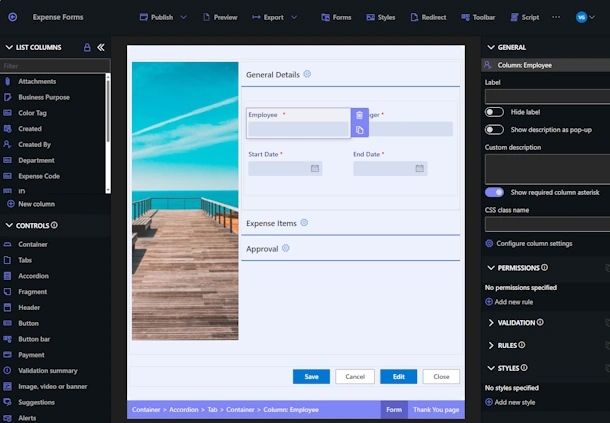
Ultimate Forms replaces the default list form with a modern, responsive form.
Using the visual Form Designer, you can:
-
Group columns into sections
-
Add tabs for clarity
-
Hide advanced columns from end users
-
Create wizard-style multi-step forms
Non-technical users can do this without writing code.
Real-world example:
An HR team builds a task form for onboarding new employees. One tab shows employee details, another shows assigned tasks, and a final tab displays completion status. The form is created in less than an hour.
3. Add Business Logic with Dynamic Rules
Dynamic Rules allow you to control how tasks behave.
Examples include:
-
Automatically set status to “In Progress” when a task is assigned
-
Prevent editing once a task is marked “Completed”
-
Highlight overdue tasks
-
Show manager-only columns based on role
Rules are configured using readable conditions, not formulas or scripts.
Real-world example:
A facilities team creates maintenance tasks. When the due date passes, the task is automatically flagged as overdue and a reminder is sent to the assignee. No Power Automate flow is required.
4. Use Actions to Automate Common Task Operations
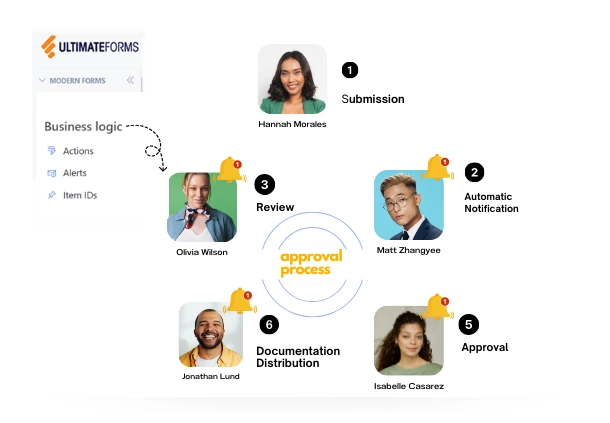
Ultimate Forms Actions let you add buttons and automation directly to the list and form.
Common task actions include:
-
Complete Task
-
Re-assign Task
-
Escalate Task
-
Send Reminder
Each action can update columns, send notifications, or trigger follow-up tasks.
Real-world example:
A project manager adds a “Complete Task” button. When clicked, the task status is updated, the completion date is filled automatically, and the next task in the process is created.
Task Management Without Power Apps or Power Automate
One of the biggest advantages of Ultimate Forms is that it eliminates the need for external tools.
This means:
-
No delegation limits
-
No premium connectors
-
No flow failures due to expired connections
-
No apps to publish or maintain
Everything stays inside SharePoint and behaves predictably.
For non-technical users, this is critical. They can build and maintain solutions themselves instead of waiting for IT or consultants.
Role-Based Task Experiences Made Simple
Different users often need different views of the same task.
Ultimate Forms makes this easy:
-
Task owners see editable columns
-
Managers see approval controls
-
View-only users see a read-only form
All of this is driven by SharePoint permissions and Ultimate Forms rules.
Real-world example:
In a finance department, task owners can update progress, while managers can approve or reject tasks. End users never see fields they are not allowed to change.
Clear Visibility with Built-In Reporting
Task tracking is only useful if teams can see progress.
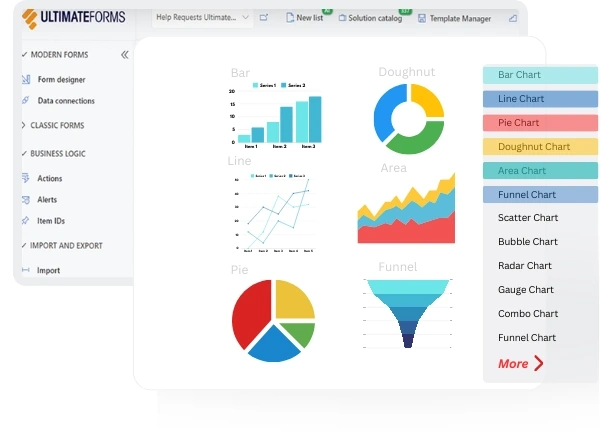
Ultimate Forms supports:
-
SharePoint pages serve as dashboards
-
Charts visualize information
-
Counters for open, overdue, or completed tasks
-
Visual status indicators
-
Visual cues such as colors and icons
This gives teams instant insight without exporting data.

Printing and Task Documentation
Many task-based processes still require documentation.
Ultimate Forms includes a powerful print engine that allows:
-
Clean, formatted task printouts
-
PDF/Word/Excel generation
-
Inclusion of comments and attachments
Real-world example:
An audit team prints completed task records with timestamps, comments, and attachments as part of compliance reporting.
Why Non-Technical Users Succeed with Ultimate Forms
Ultimate Forms is successful because it aligns with how business users think.
Key reasons include:
-
No coding required
-
Familiar SharePoint environment
-
Immediate feedback when changes are made
-
Predictable behavior
-
Easy troubleshooting
Users spend time solving business problems, not learning tools.
Conclusion
Task management does not need to be complex. With Ultimate Forms, organizations can build powerful, flexible task management solutions in SharePoint quickly and confidently.
By eliminating unnecessary tools and focusing on ease of use, Ultimate Forms enables non-technical users to create real, production-ready solutions in a fraction of the time. From HR onboarding to project tracking and daily operations, task management becomes faster to implement, easier to maintain, and more effective for everyone involved.
Add your comment