Introduction
Often organizations receive important emails that need to be archived, shared, or stored in a structured way within Microsoft SharePoint. With Ultimate Forms you can easily implement such a solution. And you stay fully inside SharePoint while leveraging its built-in Forms, Actions and Print/Export functionality. All without complex flows or external connectors.
In the following we walk through the business case, then show how to set up the solution in Ultimate Forms.
Why convert an email to PDF?
Converting incoming email messages into PDF format and routing them into SharePoint provides several benefits:
-
Archiving – A PDF provides a fixed snapshot of the email content, which is ideal for long-term records management.
-
Shareability – PDF is a universal format, easier to share with stakeholders and external parties.
-
Record keeping / compliance – PDF helps keep a static, auditable version of correspondence for legal, regulatory or internal-audit purposes.
-
Organization – Instead of leaving emails in inboxes, you can automatically store them in a document library with metadata, folder structures and versioning.
Using Ultimate Forms you can build a no-code automation that picks up emails (or tracks email metadata) and then formats or prints the content into a PDF and stores it in SharePoint, all in a streamlined way.
How to set up the solution in Ultimate Forms
Here’s a step-by-step guide to achieve the same email-to-PDF conversion and storage scenario using Ultimate Forms.
Step 1: Establish your email ingestion process
First, you need a way to bring the emails into SharePoint so that Ultimate Forms can act. For example:
-
Create a designated mailbox (e.g.,
inbound@yourorg.com) where relevant emails are directed. -
Use standard mail-flow rules (in Exchange/Outlook) to forward (or copy) the email into a SharePoint list or library. For example, configure Outlook or Exchange so attachments or email content are forwarded into a SharePoint list or into a document library.
-
In SharePoint, create a List or Document Library to capture these incoming emails (or their metadata). For example: columns for Subject, Sender, Received Date, Body, Attachments, etc.
- Create an Import profile in Ultimate Forms to automatically convert emails to SharePoint list items.
Once the email arrives and is represented in SharePoint, you are ready to apply automation to produce PDF documents.
Step 2: Create a Print Template in Ultimate Forms
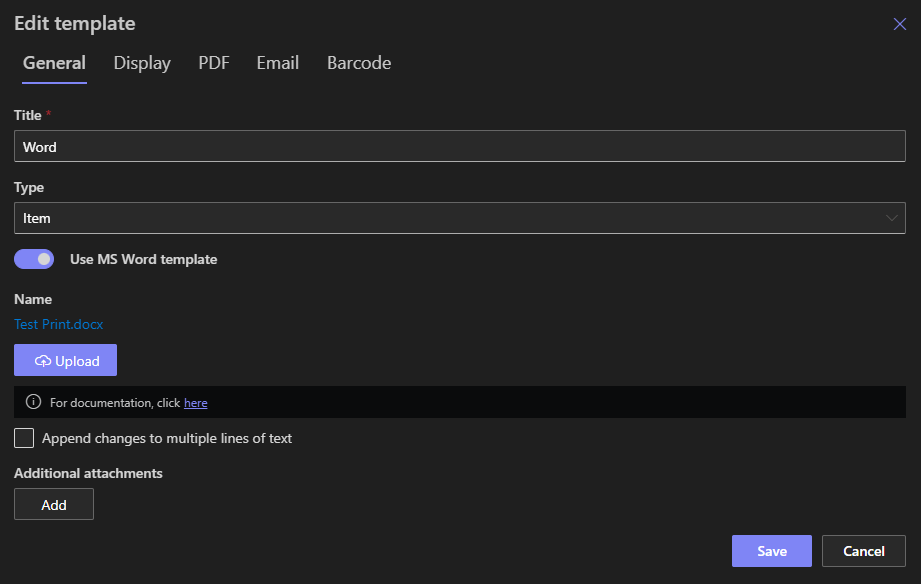
In order to convert the email to a PDF (or even Word) output, you’ll create a Print template in Ultimate Forms.
-
Navigate to the target list (or library) where the email items are stored.
-
In Ultimate Forms, go to the Print component.
-
Create a new print template of type Item (since you want to convert each email-item individually).
-
Define the layout: you can select the fields from the SharePoint item (e.g., Subject, Body, Sender, ReceivedDate, Attachments), or upload a Word
.docxtemplate with placeholders like[[Subject]],[[Body]]etc. -
Configure the output formats: select PDF (and optionally Word/Excel) as the export format.
-
Save the template.
Step 3: Build an Action in Ultimate Forms to Automate the Conversion
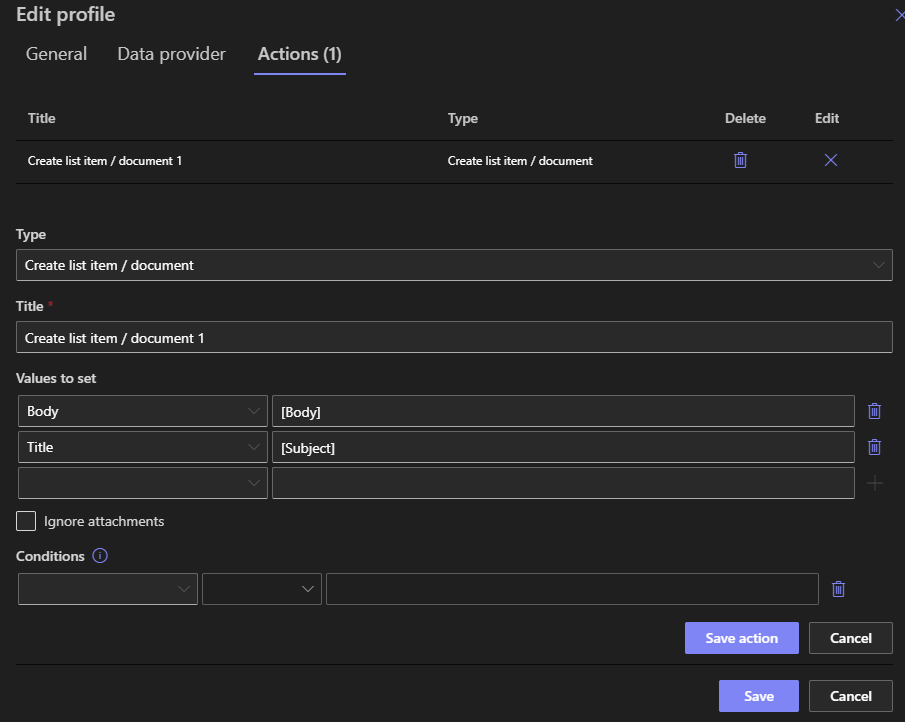
Next you’ll configure an Action (in Ultimate Forms) to pick up the email item and generate the PDF, then route it to the document library automatically.
-
In the same list/library, open Ultimate Forms and go to the Actions component.
-
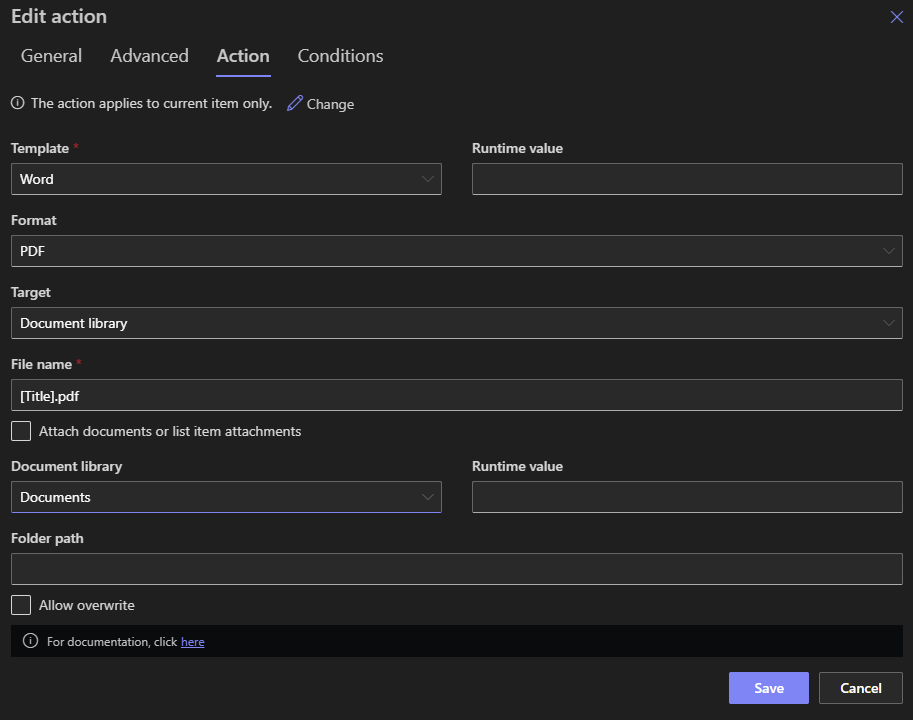
Create a new Action. Choose the Print List Items action type.
-
Configure the Action:
-
Trigger – you could set an event-trigger (e.g., when an item is created or modified) or a timer-based trigger (e.g., hourly/ daily).
-
Filter – specify that only items matching certain criteria should be processed. For example, filter by Sender or words in the Subject.
-
Template – select the print template created in Step 2.
-
Format – choose PDF output.
-
Destination – choose where to send output: Save to a SharePoint document library.
-
Filename – define a dynamic file name, e.g.,
Email_[[ID]]_[[ReceivedDate]].pdf. -
Optionally include original attachments: Ultimate Forms supports embedding attachments or merging them into the PDF.
-
-
Save the action.
Step 4: Test the Solution
-
Send an email into the designated mailbox so that an item is created in your SharePoint list.
-
Wait for the action to trigger (either via the event or wait for timer).
-
Inspect the destination: the PDF should appear in the document library (or email inbox, depending on configuration).
-
Open the PDF: it should reflect the layout you designed, with correct fields pulled from the SharePoint item.
-
Validate attachments (if included), filename, and metadata.
-
Adjust formatting, filters or triggers as needed.
Step 5: Optional Enhancements
-
Archival & retention – once PDF is generated, you could update the original item’s status to “Archived” or change permissions.
-
Approval process – combine with Ultimate Forms Alerts or Approval steps: for example, only after a manager approves does the PDF generation occur.
-
Email notifications – have the generated PDF emailed automatically to stakeholders via the Action.
-
Schedule bulk processing – Use timer-actions to convert batches of emails daily, weekly, etc.
-
Branding – design your Word template to include logos, headers/footers etc so that the resulting PDF looks professional.
-
Metadata tagging – populate additional metadata columns on the document library from the original email item for better search, filtering and compliance.
Why use Ultimate Forms versus Power Automate
Here are key advantages of using Ultimate Forms for this scenario:
-
No external connectors required – Everything runs inside SharePoint using the Ultimate Forms components (Forms, Print, Actions) rather than building a flow in Power Automate and managing connectors/APIs.
-
Simplified no-code configuration – Business users / power users can create templates, buttons, actions and schedules without coding.
-
Integrated end-to-end solution – The entire process (list capture, form handling, automation, print/export, storage) can be designed within the same toolset rather than splitting between SharePoint lists, flows, library connections.
-
Flexible triggers and scheduling – Ultimate Forms supports event-based and timer-based automation out of the box.
-
Rich document generation – With the Print component you get full control over layout, formatting, attachments, Word template support and output formats (PDF/Word/Excel).
-
Reduced dependence on licensing/connector quotas – Since you’re not calling many external connectors (e.g., converting HTML to PDF via third-party connectors), you reduce potential licensing or cost complexity.
-
Faster deployment – Designing within Ultimate Forms tends to be faster for SharePoint-centric scenarios, especially when you already manage your forms in SharePoint.
Summary
If you need to convert incoming emails into PDF documents and archive them in SharePoint, Ultimate Forms provides a streamlined, no-code way to build that solution. The process is:
-
Capture the email in a SharePoint list.
-
Create a Print template (PDF/Word) in Ultimate Forms.
-
Define an Action that triggers on item creation (or schedule) to generate the PDF and store/route it.
-
Test and refine.
-
Enhance with branding, metadata tagging, scheduled bulk runs or approval logic.
By embedding every step within SharePoint and using Ultimate Forms’ built-in features (Forms, Print, Actions), you get a robust, maintainable solution for email-to-PDF conversion suitable for archiving, compliance, shareability and record-keeping.
Add your comment