You can filter a SharePoint lookup column by more than one parent column at once. The Connected Lookup column in Ultimate Forms builds cascading dropdowns where the available options narrow according to any number of parent columns in the form, and those parents can be Choice columns as well as lookups. Select a category, a region, and a quality level, and the product dropdown shows only the products matching all three. It is configured as a column, without code, and works in both classic and modern SharePoint forms.
If your users are scrolling through 400 options to find the right one, this is the column that fixes it.
The problem: dropdowns that show everything
A plain SharePoint lookup shows every item from the source list, always. That is workable at twenty options and hopeless at four hundred: users scroll, guess, and pick the wrong item, and the bad selection then flows into every report and process downstream. The fix is a cascading lookup, where one selection filters the next, so a list of subcategories is controlled by the selected category and users only ever choose from the handful of options that actually apply. Data entry gets simpler, faster, and far less error-prone.
Connected Lookup has been solving this problem longer than almost anything on the market. It was the first component we ever released, with an early version running on SharePoint 2003, before the platform even supported custom field types. Two decades of refinement later, it handles cascading filtering along with previewing and adding new items on the fly, sorting, filtering by view, and auto-complete.
Simple cascades, though, share a limitation: each lookup filters by a single parent. Real data rarely cooperates. Products belong to a category, but they also belong to a region and a quality grade, and a form that filters by category alone still shows every region's products. That is why Connected Lookup supports multiple parents filtering the same column simultaneously, with Choice columns welcome as parents alongside lookups.
A worked example: three parents, one product list
Consider a Sales list where the user selects a product based on three criteria:
- Category, the product category, such as Electronics or Dairy. A lookup column.
- Region, where the product is made, such as Asia or Europe. Also a lookup column.
- Quality Level, a Choice column with values such as A, B, and C.
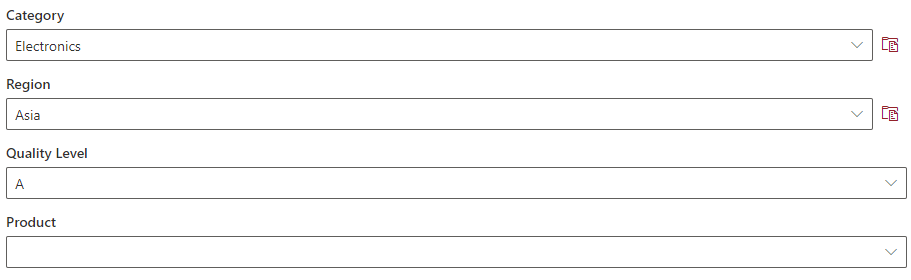
Selecting the desired Category, Region, and Quality Level filters the Product dropdown down to only the products matching all three selections.
The source Products list carries the same three columns, Category, Region, and Quality Level, describing each product. These are regular SharePoint columns, nothing special about them:
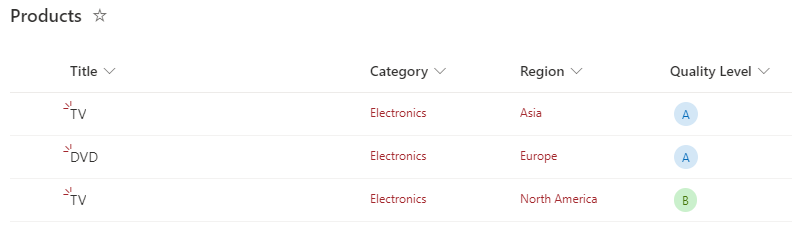
Configuring the column
In the Sales list, open Ultimate Forms with the Design button, then click Connected Lookup under Columns:
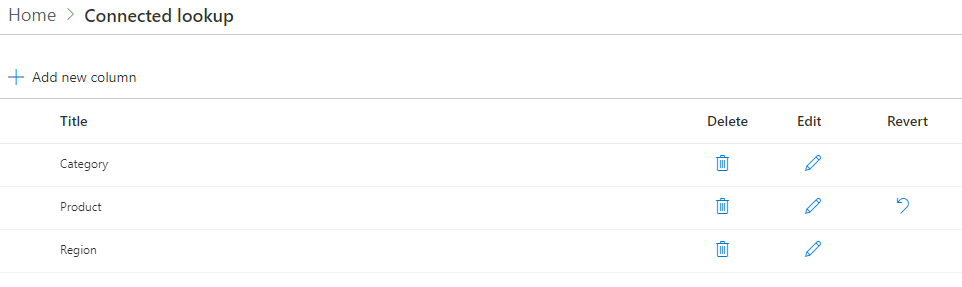
Add the Product column and configure it. Select the source List and the Display column, then make sure "Filter according to parent lookup" is checked:
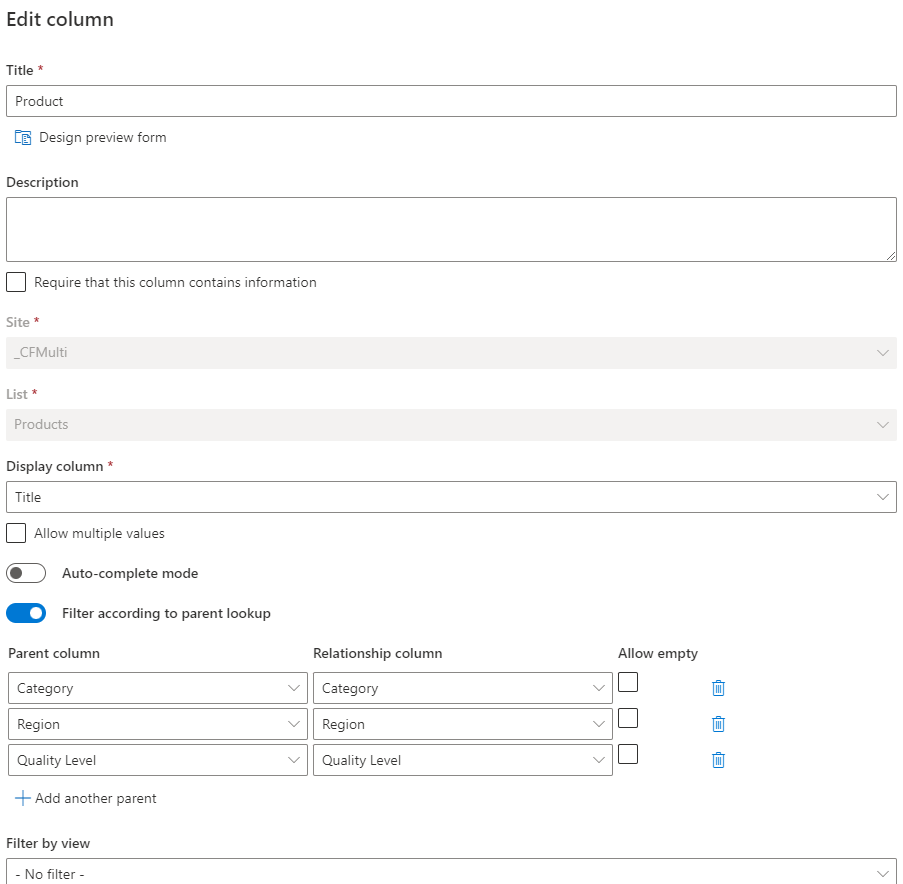
Now the part that does the heavy lifting: enter as many parent columns as the scenario requires, mixing Lookup and Choice columns freely. (In the screenshot the column is shown in edit mode, which is why the Site and List settings are locked; they cannot be changed for an existing column.)
Three terms make the configuration read naturally:
- Parent column: another column in the same list (Sales) whose value controls, that is filters, the options available in the current column (Product).
- Relationship column: the column in the lookup source list (Products) that holds the parent value for each item. For a Category parent, the Products list has a Category lookup assigning each product to a category, and multiple selection is supported too. When the parent is a Choice column, the relationship column must be a Choice column as well.
- Allow empty: when the parent has no value yet, show all options unfiltered by that parent, rather than an empty dropdown.
Configuring your own column reveals further options, filtering and sorting by view, adding new items on the fly, and more, all covered in the documentation.
Where multi-parent filtering earns its keep
Product and asset selection is the classic case: catalogs are always sliced along several dimensions at once, and every dimension you filter by removes a chance for the wrong pick. Support and ticketing forms narrow the affected item by department and location together. HR forms filter positions by both business unit and employment type. Facility booking filters rooms by building and capacity class. The pattern is always the same: whenever "which one?" depends on more than one earlier answer, a single-parent cascade cannot express it and a multi-parent one can.
Connected Lookup is also one piece of a larger relationship story in Ultimate Forms. Multi-level cascades, where each lookup feeds the next, are covered in setting up multiple cascading lookups. Lookups reaching across sites are handled with data connections. And the broader topic of modeling related data is the subject of creating relationships in SharePoint forms.
Add your comment