You can run your entire hiring intake in SharePoint: a branded, public application form candidates fill without any account, resume uploads enforced at submission, applicants flowing into a pipeline your hiring team manages with statuses and views, and automated emails handling acknowledgments, interview invitations, and updates. Ultimate Forms provides every piece without code, a free Job Applications template provides the working starting point, and our video training walks the full build on screen. This guide is the blueprint: what to build, in what order, and the specific decisions at each step.
Why build instead of subscribe
Applicant tracking is a paid software category, yet its mechanics, a form, a list, statuses, and emails, are exactly what SharePoint does well, on a platform you already own, next to the HR data you already keep there. Building it yourself buys three things a subscription doesn't: a form that asks precisely your questions, a pipeline that matches your actual hiring stages rather than a vendor's, and the freedom to change either next month without a feature request. The one genuinely hard requirement, letting external candidates submit into your internal SharePoint securely, is solved by external public forms, which is where the build begins.
Step 1: The application form candidates actually finish
The foundation is an external form: published to the open web, filled by candidates with no Microsoft account and no access to your tenant, writing submissions straight into your Applications list. (This capability is covered in depth in External Public SharePoint Forms; it is what makes the whole system possible.)
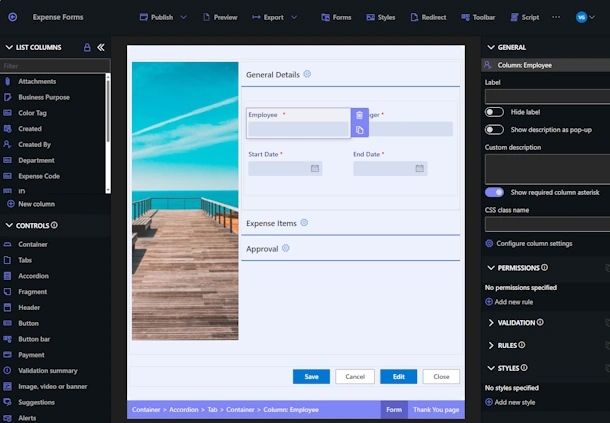
Design the form around a concrete field set: candidate name, email, and phone; the position applied for as a dropdown driven by your open Positions list, so the form always offers exactly the roles currently open; years of experience; work eligibility; how they heard about the role; and a free-text motivation field kept deliberately short. Then let the form adapt: conditional sections show relocation questions only when the role requires it, or portfolio links only for design positions, so every candidate answers everything relevant and nothing that isn't. Keep the whole thing to one screen or a few wizard-style steps; application abandonment is real, and every needless field costs you candidates.
Step 2: Validation that protects your pipeline
Every invalid application costs a recruiter minutes, so enforce completeness at the door with validation rules: email in a valid format, phone present, position selected, and any knockout requirement, work authorization, minimum experience, checked before submission is accepted. The goal is that nothing enters the pipeline requiring a "could you clarify?" email; the real-time validation machinery expresses these rules without formulas or code.
Step 3: Resumes and documents, required and restricted
Make the resume a hard requirement: the form should refuse submission without one, and restrict allowed file types so you receive PDFs and Word documents rather than whatever a phone exports. Add an optional cover letter slot and, where roles need them, portfolio or certification uploads as distinct, labeled attachments rather than one anonymous pile, so a recruiter opening the application sees named documents in expected places. A resume submission form build covering this pattern in detail is available as a companion.
Step 4: The moment after Submit
What a candidate sees after submitting shapes their impression of your company more than the form did. Configure a tailored confirmation screen rather than dumping them back to a blank page: thank them by name, state what happens next and when ("we review applications weekly; you'll hear from us either way"), and offer a link back to your careers page. The thank-you pages and redirect options articles cover the mechanics; the content is the part most systems forget.
Step 5: Branding end to end
The application form is a public face of your company, often the first one a candidate meets. Apply your colors, logo, and typography to the form, the confirmation screen, and, critically, every email the system sends, so the acknowledgment a candidate receives looks like your company wrote it rather than a server. Form styling is configuration, not design work: see How to Style SharePoint Forms.
Step 6: The pipeline your hiring team works in
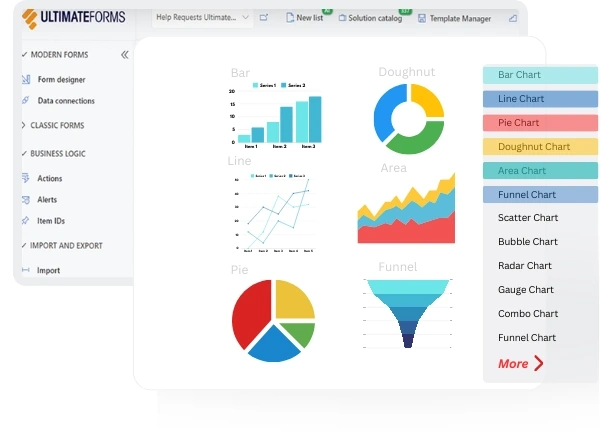
Inside SharePoint, the Applications list becomes the recruitment pipeline. Give it a Status column with your actual stages, New, Screening, Interview, Offer, Hired, Rejected, and build filtered, color-coded views per stage so "who's waiting on us in Screening?" is a click, not a meeting. Add an internal notes section, visible to the hiring team and never to anyone external, using column permissions, and a rating field for structured evaluation. Permission rules keep the pipeline honest: hiring managers see applications for their own positions, HR sees everything, and interview feedback stays with the people entitled to it. Track stage timestamps and the pipeline reports itself, time-in-stage, volume per position, source effectiveness, on a candidate dashboard.
Step 7: Communications that send themselves
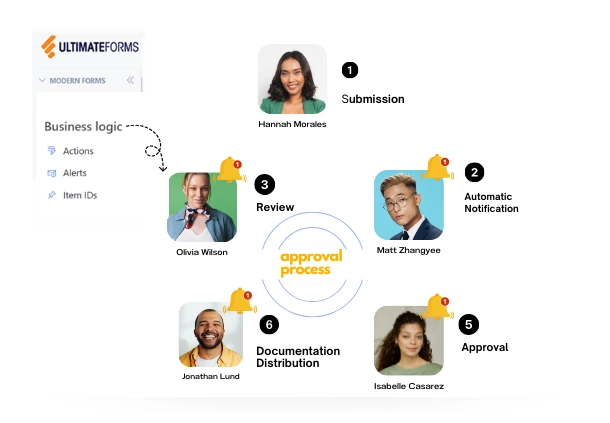
Recruiting communication is repetitive by nature, which makes it automatable by design. Configure the sequence once: an immediate branded acknowledgment on submission; a status-driven update when a candidate moves to Interview, carrying the details and a calendar entry; templated outcome messages, personalized with merge fields from the application, for offers and rejections alike, sent with one click rather than composed from scratch. Silence is the worst recruiter brand there is, and this removes it structurally, the candidate who applied at midnight has a professional acknowledgment at 12:01. The pattern is detailed in Streamline Candidate Communication with Automated Emails.
Beyond intake: the rest of the recruiting machine
The application system is the front door of a larger build that SharePoint handles just as well. Interview scheduling, panels, slots, and confirmations, is its own solution, covered in Candidate Interview Scheduling System in SharePoint. The full recruitment process, from requisition to hire, is walked through in HR Recruitment Process using Ultimate Forms, with its own downloadable site template. And when the successful candidate signs, the same platform runs onboarding, with the Employee Onboarding System template picking up where hiring ends. Internal mobility fits the same pattern via the Internal Job Application template.
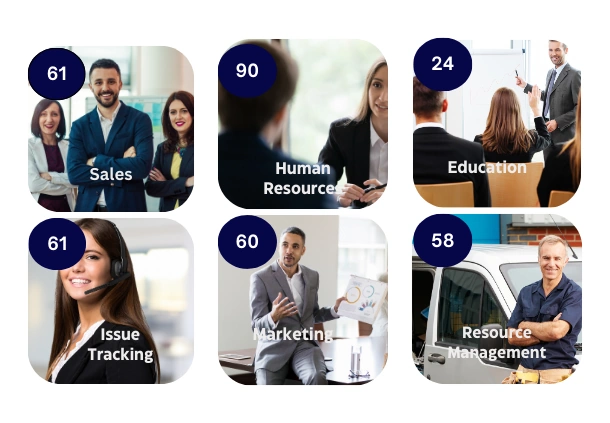
Two accelerators shorten the whole journey. The template library includes the Job Applications solution and a deep bench of free HR applications, download, customize, deploy. And the video training shows the complete applicant tracking build performed live, the fastest way to see how the steps above fit together before you start. A 30-day fully functional trial of Ultimate Forms covers the build period comfortably.
The result is not a lesser substitute for an ATS. It is hiring intake that asks your questions, speaks your brand, follows your stages, and changes when you do, running on the platform your organization already trusts.
Add your comment