Create a project, and its task plan should already exist: the resource check starting day one, the documentation task spanning the first month, the manager's review scheduled thirty days out. In Ultimate Forms, that happens with one Create List Item action per standard task, each firing when a project is added, computing its dates from the project's own, and linking itself to the project through an Associated Items column. The build takes about ten minutes, uses no workflows, flows, or Power Apps, and this walkthrough covers every step. For the full automation toolkit the pattern draws on, see the automation hub.
Every project starts the same way, until it doesn't
Standard task sets are how organizations encode what "starting properly" means: every project begins with a resource check, every hire with the same onboarding steps, every audit with the same preparation list. The set is policy; creating it is chores. When the chores are manual, each new project costs someone ten minutes of copying tasks from the last project, adjusting dates by hand, and inevitably varying: a task forgotten here, a due date miscalculated there, and the standard stops being standard precisely where it mattered, at the start.
Generated tasks fix the variance at its source. The project entry becomes the trigger, the task set becomes configuration, and every project starts with exactly the plan the process owner defined, dated correctly against its own start date, linked and visible from the project itself. The pattern below uses three tasks; the same structure carries ten, and the same mechanics serve onboarding checklists, contract milestones, and inspection programs, anything where one record should arrive with its working parts attached.
The structure: two lists and a relationship
The data model is two plain SharePoint lists. Projects carries Title, Description, Start Date, and End Date. Project Tasks carries Title, Start Date, and Due Date. The connective tissue is an Associated Items column on Projects, the parent-child column type that displays each project's related tasks inside the project's own form:
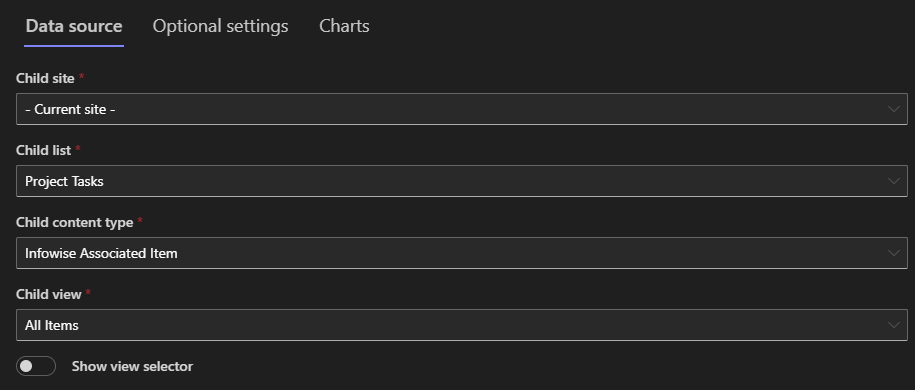
A worthwhile shortcut: the AI-assisted Form Generator builds both lists at once from a description, relationship included and correctly configured, which is the fastest path from nothing to this structure:
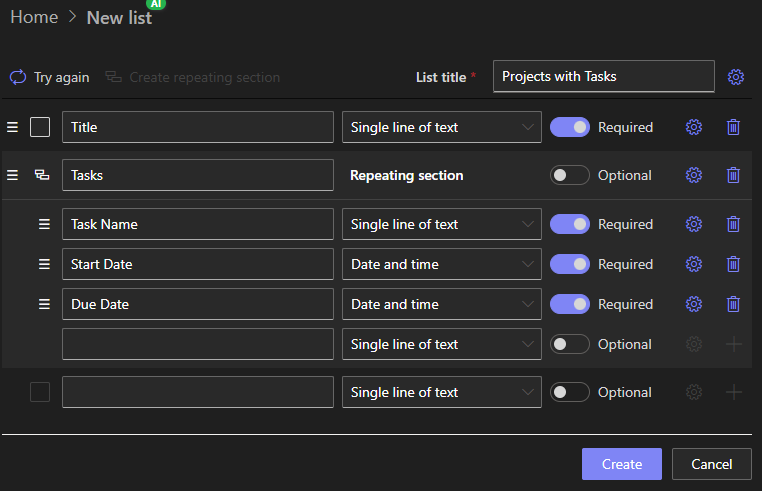
The actions: one per standard task
On the Projects list, open Design, then Actions, and create one Create List Item action per task in the standard set. Each follows the same recipe.
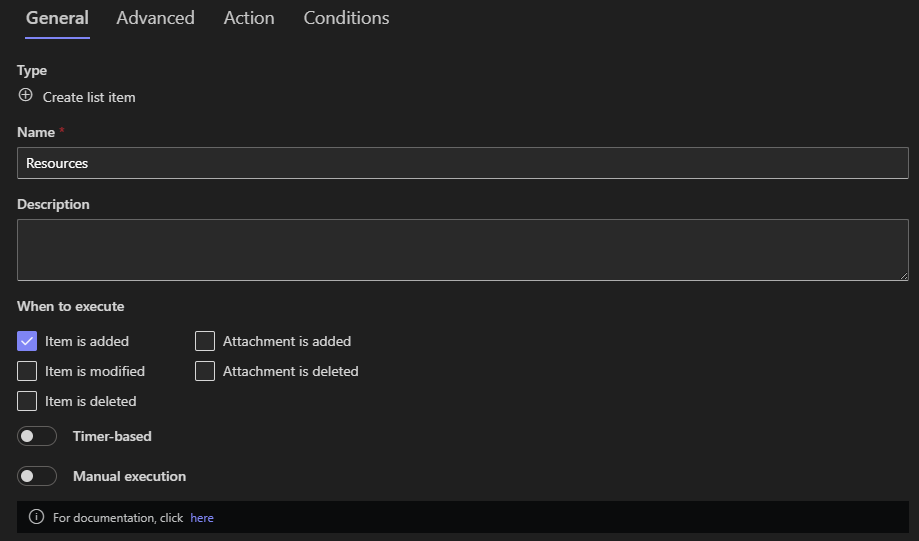
The trigger. Set each action to run when an item is added, and only then, a project's edits should not spawn duplicate tasks. Give each action the task's business name, "Create resource check," so the action list reads as the task plan it implements:
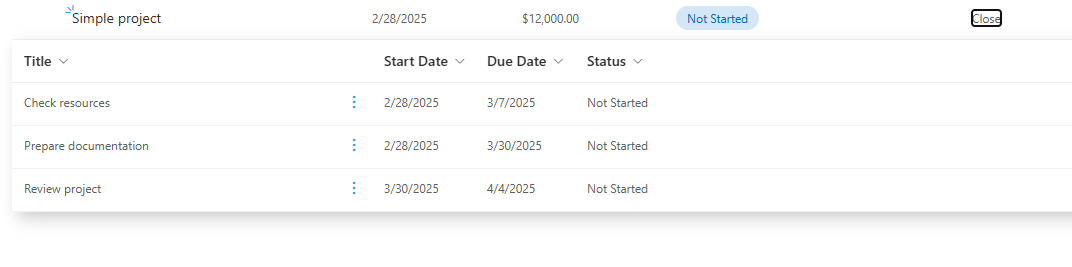
The values. On the Action tab, point the List setting at Project Tasks and map the columns. The Value Picker inserts the parent's columns in square brackets, and simple arithmetic shapes the dates. The demo's three tasks show the range of the technique: Check resources starts on [Start Date] and runs to [Start Date]+7; Prepare documentation spans [Start Date] to [Start Date]+30; Review project lands on [Start Date]+30, assigned to the manager. Task titles can carry the project's name, Review for [Title], so every generated task identifies its project at a glance:
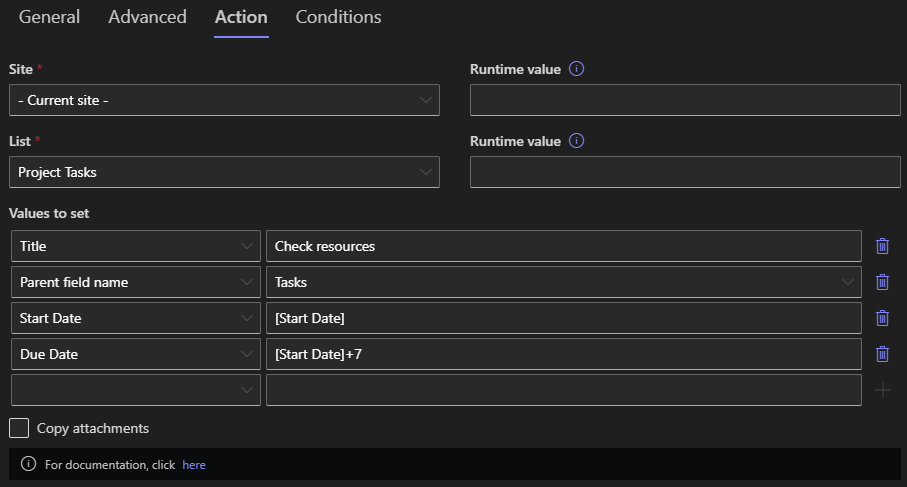
The link. The mapping list includes one special entry: Parent field name. It is not a column in Project Tasks; it tells the action to establish the parent-child relationship as it creates the item. Select the Associated Items column from the parent list, and each generated task belongs to its project automatically, no lookups to fill, no IDs to copy.
Repeat for each task in the set:
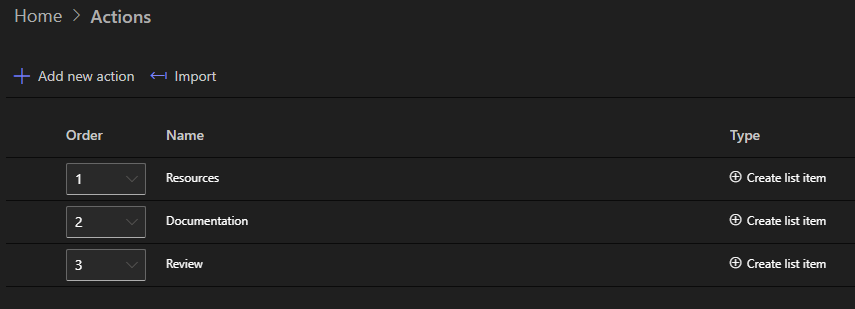
Two details worth getting right
The dates deserve a moment of design before the mappings are typed. Decide which anchor each task really follows: most follow Start Date, but closing tasks often belong to End Date, the handover checklist at [End Date]-7, say, and anchoring them correctly means the plan adapts when a project's dates shift at creation. And decide who owns each generated task: a fixed assignee works for roles that never change, while mapping from a project column, [Project Manager], say, keeps the template reusable across teams. Both decisions are one mapping each, and both are the difference between a template that fits every project and one that needs hand-editing after generation, which would quietly reintroduce the manual chore the pattern exists to remove.
Seeing it work
Create a project with a start date, save, and allow up to a minute for the actions to run. In the Projects view, the Associated Items column's details link reveals the newly generated tasks:
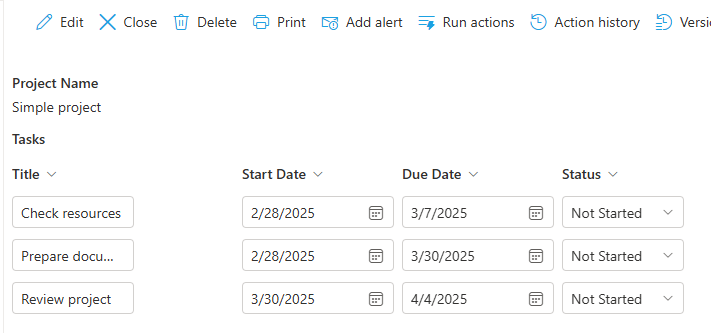
Open the project's Display form, and the tasks sit inside it, viewable and manageable without leaving the project:
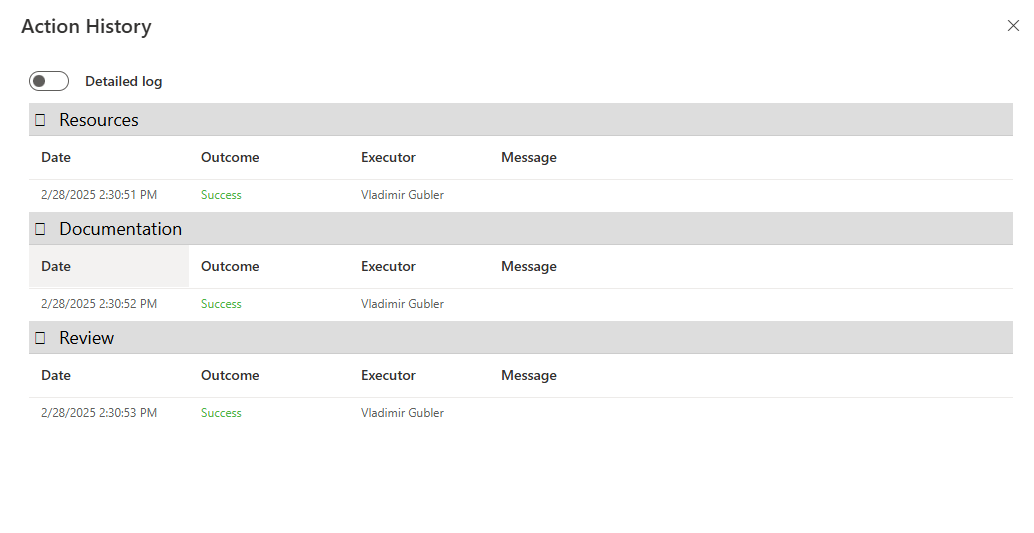
Enable logging on the actions (under Advanced), and Action History records every generation, which is where "did project X get its tasks?" becomes a lookup rather than a search:
Ten minutes of configuration, and the task plan is now infrastructure. The next project, and the fiftieth, start identically, which is the entire promise of a standard: it holds without anyone holding it.
One timing note for testing: the actions run asynchronously, in the background after the save, which is why the tasks appear within a minute rather than instantly, and why the execution model is worth knowing when a generation seems to lag.
Growing the pattern
Three extensions carry the demo toward production.
Wrap the set in an action group. Three actions with identical triggers work; one group owning the trigger and running the three in order reads better, maintains better, and gains halt-on-failure. Adding a task to the standard set becomes attaching one more action to the group.
Let the plan vary by project. Conditions on the individual actions make the template adaptive: the compliance-review task generates only when Project Type equals Regulated, the translation task only for international projects. One trigger, one template, with optional parts that answer the project's own columns, the same condition grammar as everywhere else in the platform.
When the task count depends on duration, loop. A fixed set of named tasks is this article's pattern; a task per week between the start and end dates is the loops pattern, where an action group executes once per date in the range. Real project templates often combine both: the named milestones from fixed actions, the recurring checkpoints from a loop.
From there, the rest of the platform attaches naturally: alerts remind assignees as each generated due date approaches, summary columns on the project count open tasks, and a validation can even refuse to close a project while tasks remain open. The generated tasks are ordinary SharePoint items, which is the quiet strength of the whole approach: everything that works on items works on them.
Add your comment