Why Is Adding a Simple Field So Complicated?
Imagine you're building a SharePoint form and realize you need another field. Perhaps it's a date, a department, or a simple text field for additional comments. Adding a field should take just a few seconds, allowing you to continue designing your form without interrupting your work. After all, you're building a form, not launching a spacecraft! Unfortunately, anyone who has spent time customizing SharePoint forms with Power Apps knows that seemingly simple tasks can become surprisingly complicated. Instead of clicking a button and continuing your work, you may find yourself switching applications, refreshing data sources, and troubleshooting missing columns. What should be a quick adjustment becomes an unnecessary distraction.
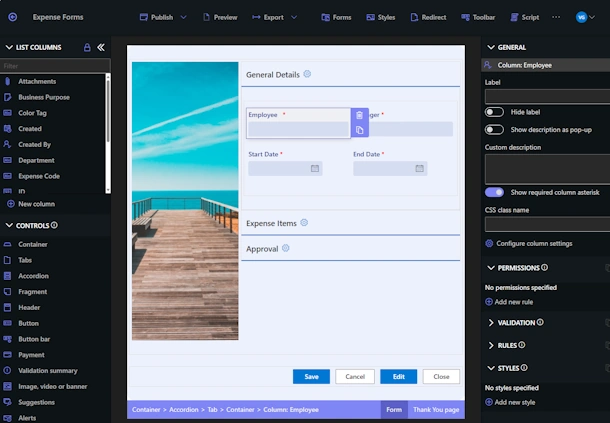
With Ultimate Forms, the experience is dramatically different. You can create SharePoint columns directly within the form designer, configure their properties, and immediately continue building your form. No switching applications, no refreshing Power Apps connections, and absolutely no programming required.
Power Apps: Two Environments for One Simple Task
The fundamental problem with adding fields in Power Apps is that form design and SharePoint column management happen in separate environments. Power Apps provides the interface for designing your form, while SharePoint manages the underlying list columns. Although these components work together, making changes requires moving between two different applications.
Suppose you're building an employee onboarding form and realize you need a new Start Date field. You cannot simply create the underlying SharePoint column directly from the Power Apps form designer. Instead, you must interrupt your work and return to SharePoint to create the column before adding it to your form. Suddenly, a simple adjustment has become a technical expedition.
The Power Apps Field Creation Process
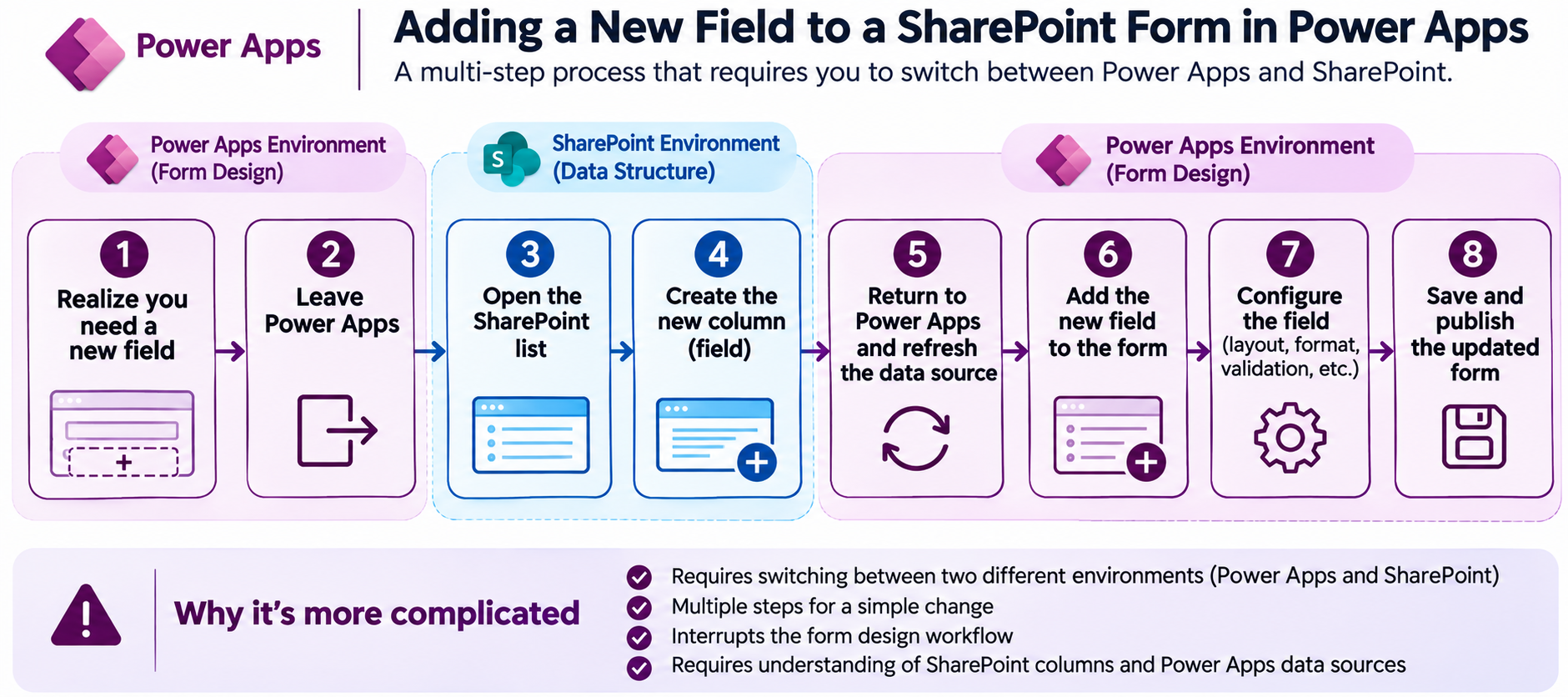
Here's what you typically need to do when adding a new SharePoint column to a Power Apps form:
-
Leave the Power Apps form designer.
-
Navigate to the underlying SharePoint list.
-
Create a new SharePoint column.
-
Configure its name, type, and properties.
-
Return to the Power Apps designer.
-
Refresh the SharePoint data source.
-
Add the new field to your form.
-
Configure its placement and properties, then save and publish.
That's eight steps involving two different environments just to add one field! Experienced Power Apps developers may be familiar with this routine, but familiarity doesn't make it efficient. It's rather like having to walk into another room every time you need another ingredient while cooking dinner. Eventually, you start wondering who designed the kitchen.
When SharePoint and Power Apps Don't Stay in Sync
Switching between environments is frustrating enough, but synchronization introduces another potential complication. After creating a SharePoint column, you naturally expect Power Apps to recognize it when you return to the designer. Unfortunately, newly created columns don't always appear immediately, even when you've followed the correct procedure. Refreshing the SharePoint data source is normally the next step, but a refresh doesn't always resolve the problem immediately. Sometimes additional troubleshooting is necessary, or you may need to wait for changes to become available. Meanwhile, you're wondering whether you've overlooked something or whether Power Apps has decided to take an unscheduled coffee break.
These problems are particularly frustrating because you may have done everything correctly and still cannot continue. Instead of designing your form, you're investigating why two Microsoft applications aren't cooperating. That's hardly the productive experience most business users expect from a form builder.
The Hidden Cost of Interrupting Your Workflow
There's another important consideration beyond the number of steps: maintaining momentum while building a form. When designing an interface, you're thinking about layout, required information, user experience, and business rules. Every interruption forces you to redirect your attention away from those decisions. Imagine building a form containing 40 fields and discovering that several additional columns are needed along the way. Each trip between Power Apps and SharePoint interrupts your concentration and introduces unnecessary overhead. Even when individual interruptions are relatively short, their cumulative impact can become significant.
For business users who only occasionally modify forms, these interruptions are especially troublesome. They must remember where to create columns, how to refresh connections, and how to configure the resulting controls. A form builder should help users maintain their momentum, not repeatedly send them on a scavenger hunt through Microsoft 365.
Ultimate Forms: Create Fields Without Leaving the Designer
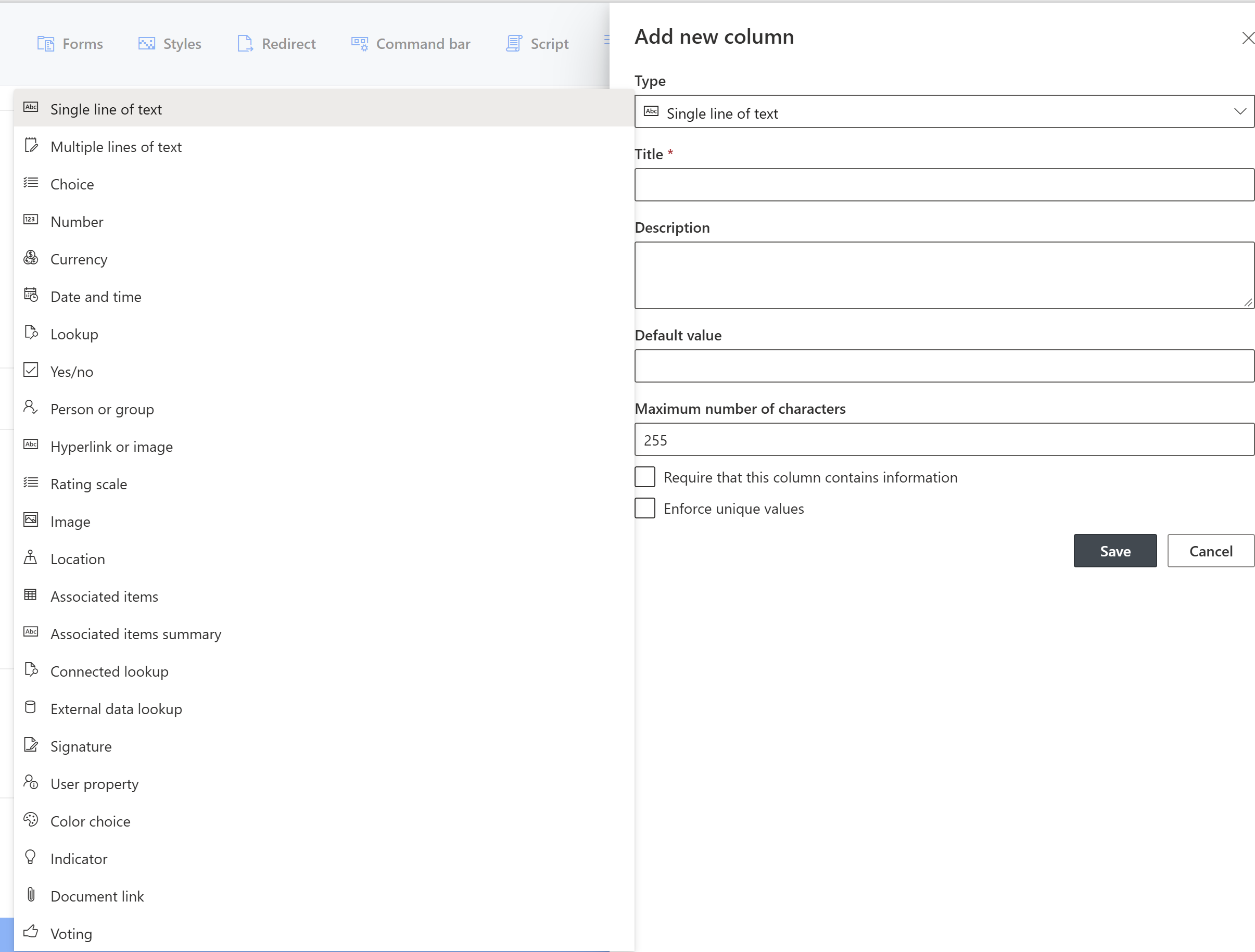
Now consider the same scenario using Ultimate Forms. You're building an employee onboarding form and realize you need a Start Date column. Instead of leaving the designer, you simply click the New column button directly within the Ultimate Forms interface.
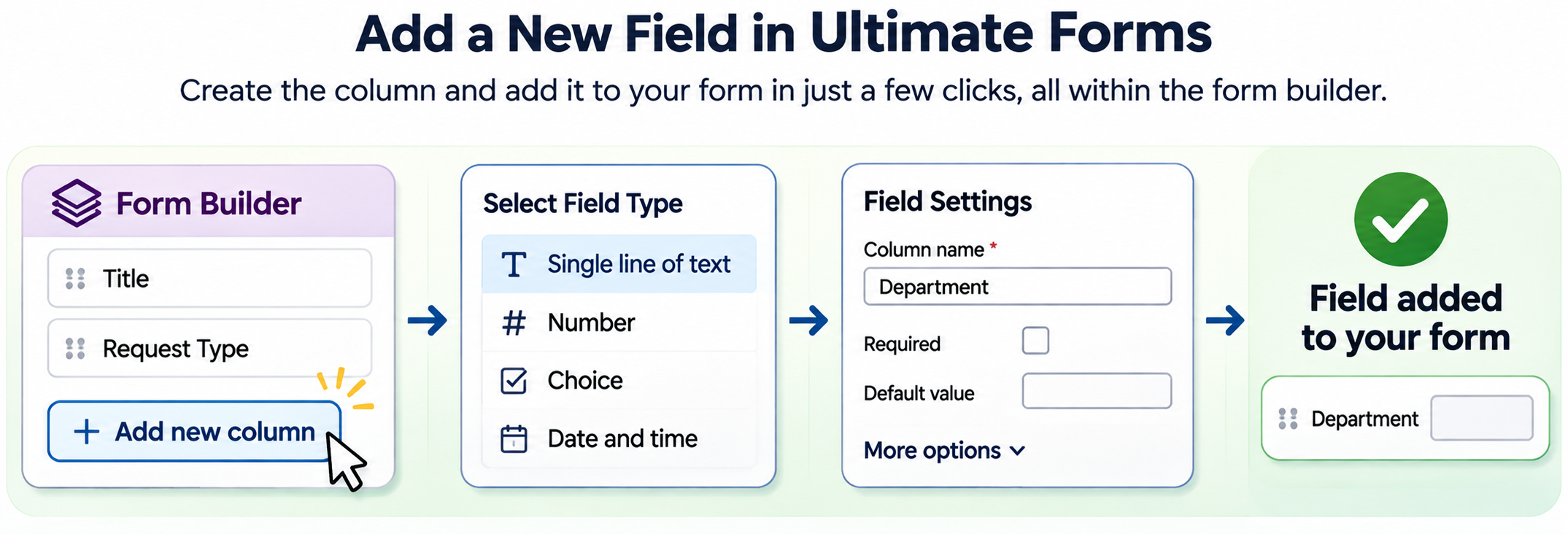
Next, select the type of column you want to create, such as text, number, choice, or date. Ultimate Forms presents familiar SharePoint column configuration options, allowing you to specify the field name and other properties. Once you've finished, you can immediately continue designing your form in the same interface.
The entire operation can be completed in seconds without disrupting your workflow. You remain focused on the form, its requirements, and the experience you're creating for users. There's no separate Power Apps data source to refresh and no need to navigate between applications.
Creating columns is only one part of what the designer handles. Tabs, layouts, validation, and other form features are all configured in the same place, so you can keep building without switching tools. For a broader look at what’s available, see our overview of the must-have features in forms for SharePoint.
Adding Fields Is Just the Beginning
The difference between these approaches extends far beyond creating columns. Ultimate Forms is designed to make the entire SharePoint form-building experience fast, intuitive, and accessible without programming. Adding fields is simply one example of how much easier development becomes when everything is managed through a unified interface. Consider what happens when you want to make your form interactive. Perhaps certain fields should appear only when a particular option is selected, or a manager should see information that regular employees cannot access. With Power Apps, these behaviors frequently involve writing Power Fx formulas, understanding control properties, and testing the resulting logic. Microsoft calls Power Apps a low-code platform, but writing formulas is still programming, regardless of what you call it. That skills gap is the main reason teams look for a Power Apps alternative for SharePoint forms.
With Ultimate Forms, advanced functionality is configured through visual settings and rules rather than programming. For example, you can build dynamic SharePoint forms with rules that control visibility, permissions, calculations, and other behaviors. The interface guides users through configuration, allowing them to concentrate on business requirements instead of programming syntax.
Powerful Features Without Programming
Form validation provides another excellent example of the difference. Imagine requiring an explanation whenever an employee submits an expense exceeding a certain amount. Ultimate Forms allows you to configure conditional validation rules without writing code. Our article on advanced form validation in SharePoint explores how these capabilities help enforce business requirements. The same philosophy applies to form appearance and behavior. Users can configure layouts, colors, conditional formatting, and other visual elements through the designer. Our guide to styling SharePoint forms demonstrates how easily professional interfaces can be created. You shouldn’t need programming skills just to make a form look and behave the way you want.
You can also use conditions in Ultimate Forms to control how forms respond to different situations. Fields can become visible, required, or read-only based on information entered or the person using the form. Sophisticated business requirements become manageable configuration tasks instead of software development projects.
Form Development Shouldn't Require a Developer
Perhaps the greatest advantage of Ultimate Forms is that form development doesn’t have to be restricted to technical specialists. Business analysts, department managers, SharePoint administrators, and other team members can participate directly in creating and maintaining solutions. They understand their business requirements, and Ultimate Forms gives them the tools to implement those requirements without learning a programming language. This becomes particularly valuable when forms support important business processes. Rather than depending on developers every time requirements change, teams can make adjustments themselves. Our article on building SharePoint business processes using forms instead of workflows explores how this approach can simplify entire solutions. Less technical complexity means faster development and easier maintenance.
Stop Fighting Your Form Builder
Power Apps is a powerful general-purpose application development platform, but that power comes with complexity. For organizations primarily interested in building SharePoint forms, there’s little benefit in making everyday tasks more complicated than necessary. Nobody wants to spend their afternoon refreshing data sources and hunting for missing columns when they could be finishing their application. Ultimate Forms takes a different approach by keeping form development directly within SharePoint. Creating columns, designing layouts, configuring rules, and implementing advanced functionality are all part of one fluid, no-code experience. Instead of forcing users to adapt to a complicated development platform, Ultimate Forms makes the process straightforward and accessible. To see how the two approaches compare across forms, automation, approvals, and reporting, read Ultimate Forms vs the Microsoft Power Platform.
For organizations seeking a fast, intuitive SharePoint form builder that can be used by many team members rather than just developers, Ultimate Forms is clearly the better choice. Adding a field in seconds is only one example of the time and frustration it can save. For a fuller picture, see our side-by-side comparison of building the same SharePoint solution in both tools. Explore Ultimate Forms and discover how much easier SharePoint development can be when your tools work with you instead of against you.
Add your comment