An action group in Ultimate Forms runs several actions as one unit: one trigger, one set of conditions, one click for the user, and the attached actions execute in your chosen order, with the option to halt the sequence the moment one fails. It is the orchestration layer of the actions engine, and the one that keeps multi-step automation readable: each action stays small and single-purpose, and the group owns the when, the order, and the button. This guide builds the classic example, closing a project in one step, and covers the rules of composition that the mechanism rewards.
Independent by design, combined on demand
What sets actions apart from traditional workflow products is their independence. Each action is its own unit: its own trigger, its own conditions, its own job, no flowchart connecting it to anything. That independence is why actions are fast to build and safe to change, you add, modify, and retire them one at a time across the solution's life, without redesigning a diagram or redeploying a system.
But real operations are often plural. Closing a project means updating its status and notifying the supervisor. Archiving an item means copying it and then deleting the original. Without a grouping mechanism, the options are awkward: give several actions identical events and conditions and trust them to coincide, or ask the user to click three buttons in the right order. The first scatters one business operation across copy-pasted conditions; the second outsources sequencing to human memory.
The action group resolves it cleanly. It is itself an action type, with its own triggers and conditions, whose job is to execute other actions in a specified sequence. The business operation gets one name, one trigger, and one entry in the user's world, and the small actions underneath keep their independence for testing and reuse.
The build: closing a project in one step
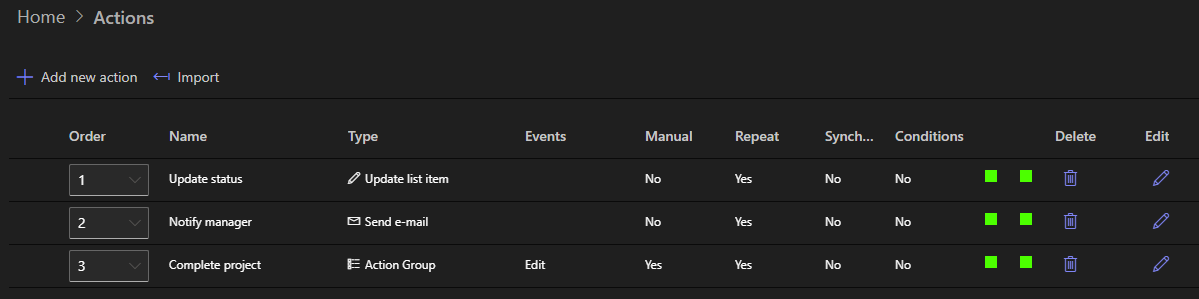
The demonstration uses three actions. Complete project is the action group, triggered by item modification or manually. Update status is an Update List Item action that sets the project's status. Notify manager is a Send Email action. The two workers have a deliberate peculiarity: no triggers of their own. They run only when the group invokes them, which is the first rule of composition, the group owns the trigger, the workers own the work:
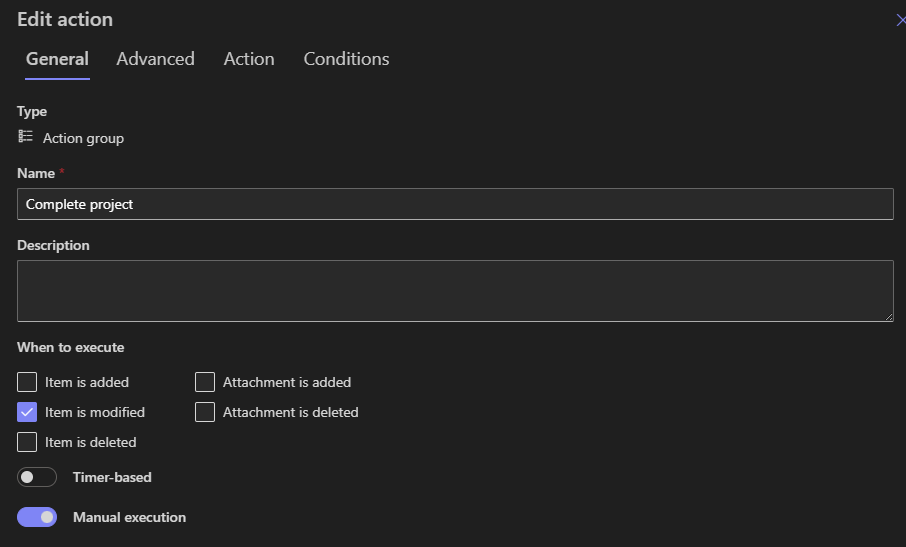
Configuring the group. Under General, name it for the business operation, Complete project, not "Group 1", because the name is what users will see on buttons and what maintainers will read in a year. Under When to execute, the demo uses Item is modified, with conditions available to narrow it to the changes that matter, and Manual execution enabled so users can also run it from a button:
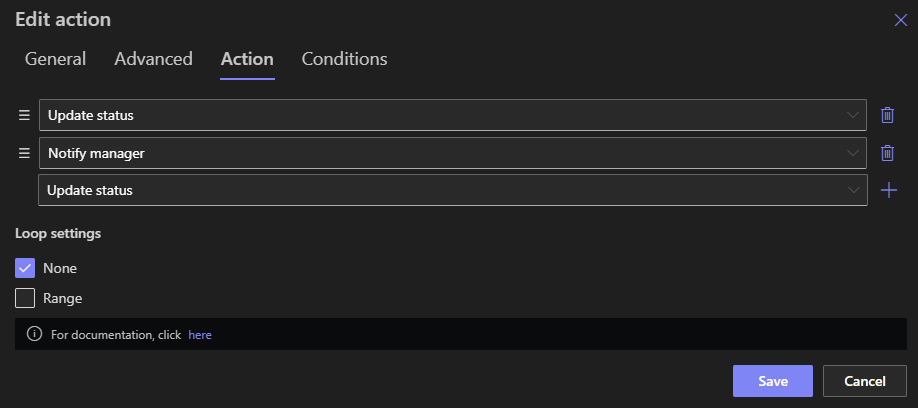
Attaching the actions. On the Action tab, add each worker to the group's list and set the order. Order is not cosmetic: together with the Halt execution on failure option on each attached action's Advanced tab, it is the group's safety mechanism. The archive example makes it vivid: a group that moves items to an archive runs Copy first and Delete second, with halt-on-failure on the copy, because the one outcome worse than a failed archive is a deletion whose backup never happened:
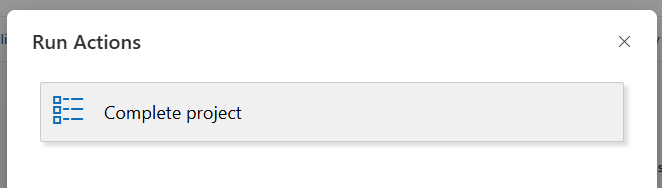
Running it. Modify a project, or click Run Actions in the list toolbar and pick Complete project, and both workers execute in order. The execution result displays each action's name and any messages it returned:
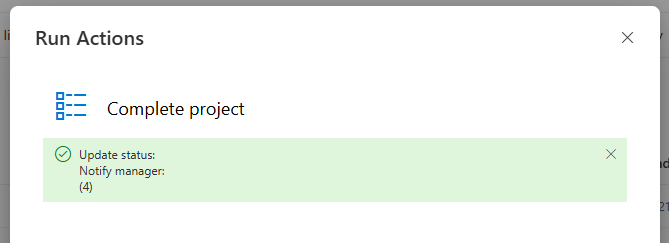
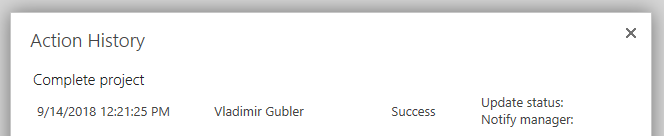
And with history enabled, every run is recorded in Action History, each step with its outcome, which is where "did the manager get notified?" becomes a lookup:
The rules of composition
The mechanism is simple; a few rules make solutions built on it stay simple.
One job per action, one operation per group. The group is where jobs become operations. Update status and Notify manager are testable and reusable alone; Complete project is what the business asked for. When a future request says "closing a project should also lock the record," the change is one more Manage Permissions action attached to the group, not surgery on a monolith.
Conditions live at two levels, deliberately. The group's conditions decide whether the operation triggers at all. Each attached action's own conditions are evaluated during execution, and an action that does not pass is skipped while the sequence continues. That split enables operations with optional steps: the notification step can carry a condition like "amount above the threshold," so the same Complete project group quietly adapts to the item it runs on.
Membership is flexible, and plural. An action can belong to no group, one group, or several, and it can keep independent triggers alongside its group memberships. The same Notify manager action can serve Complete project, Cancel project, and its own Friday schedule. Groups are also an honest way to bundle conditions: rather than repeating the same five conditions across five actions, put them once on the group.
Impersonation stays with the workers. The group itself does not support impersonation, it touches no items, but each attached action sets its own, which is precise exactly where precision belongs: the permissions step can run elevated so a regular user's click can set item security, while the email step runs as itself. Elevation is granted per job, never wholesale.
Name for the operation, describe for the successor. The group's name surfaces on buttons and in execution results, so it should say what the business calls the operation. The description field is for the person maintaining this in two years: what the operation covers, and why the steps are ordered as they are. Thirty seconds of writing, and the solution documents itself where the next maintainer will actually look.
Loops: the group as a repetition engine
Action groups carry one more capability that multiplies everything above: execution loops. A group can run its attached actions once per value in an interval, every date between two dates, every number between two bounds, passing the current value into each pass. One trigger, and a project gets a checkpoint task per week of its duration, each dated to its own week. The technique, including the two-pass configuration it requires, has its own full walkthrough.
Groups also pair naturally with the human side of the platform. A manual group behind a Run Actions button is how complex operations become one-click for users, with visibility rules deciding who sees the button and when, and parameters collecting input as it runs. And when the operation is a stage in a formal process, the group slots in beside the approval machinery: the approval records the decision, the group does the consequences.
The summary fits in one sentence: actions keep automation small, and action groups keep small automation organized. Between them, multi-step business operations stay what they should have been all along, a list of named steps, in order, behind one button.
Add your comment